Protecting Your Data from Geopolitical Threats: A Practical DLP guide.

Here’s how you can use Microsoft Purview’s Data Loss Prevention (DLP) policies to safeguard your information from unauthorised access today.


Important:

As a best practice, always conduct a business impact assessment first. Doing activities 1 and 2 can disrupt legitimate business operations. Ask yourself:

  • Do we have suppliers, partners, or customers in these regions?
  • Are there ongoing projects requiring data exchange that will go to this region?
  • Could this affect our global workforce or remote employees?

1. Block Risky IP Addresses

Start by implementing IP-based restrictions in your DLP policies. Block known IP addresses from high-risk countries to prevent data exfiltration attempts. This creates your first line of defence against unauthorised access from these regions.

You can do this through Defender for Cloud apps: https://learn.microsoft.com/en-us/defender-cloud-apps/ip-tags
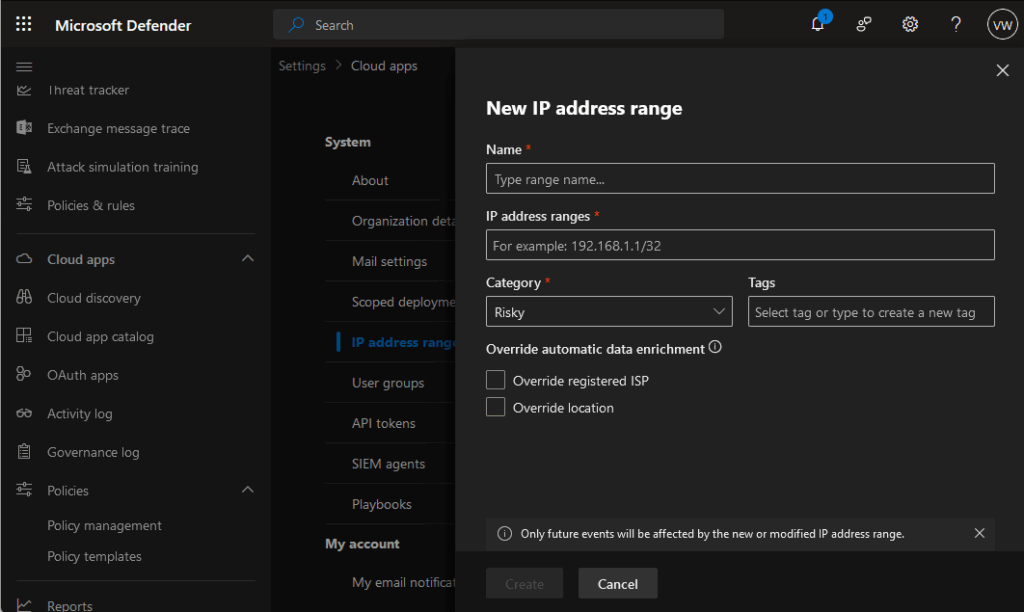
2. Restrict File Sharing to Risky Platforms

Many data breaches happen through seemingly innocent file sharing. Block access to popular file-sharing services hosted in these regions:

Here’s a few popular mail and file sharing sites for the 2 countries mentioned in the Microsoft Security Program post.

Russian platforms:

• Yandex.Disk (https://360.yandex.com/disk/)

• Mail.ru Cloud (https://mail.ru/)

Chinese platforms:

• Baidu Pan (https://pan.baidu.com/)

• Tencent Weiyun (https://www.weiyun.com/)

Configure your DLP policies to detect and block uploads to these services automatically.
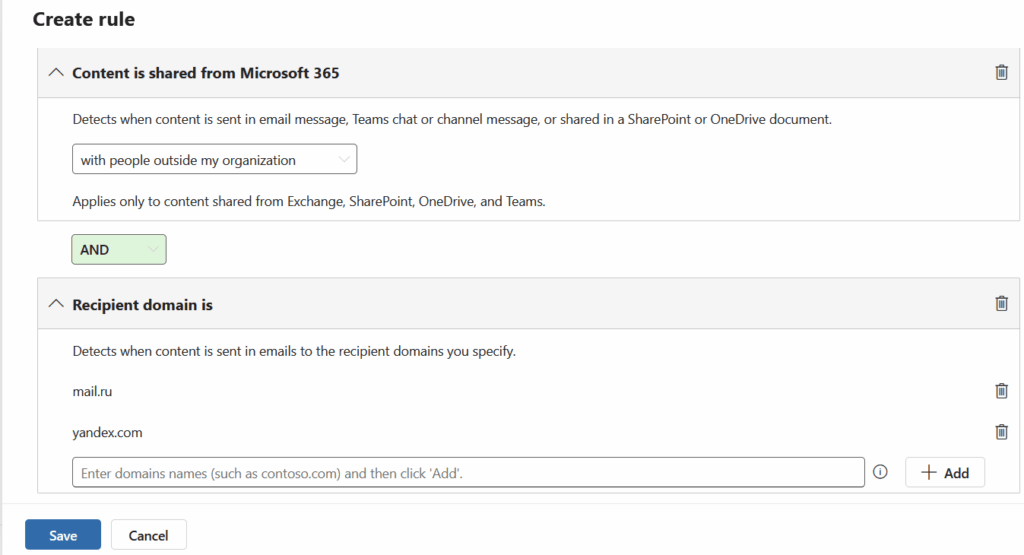
You can also create a policy to block uploads to a group of domains, so that end-user will NOT be able to uploaded sensitive data through their devices. The can be configured for Purview Endpoint DLP.
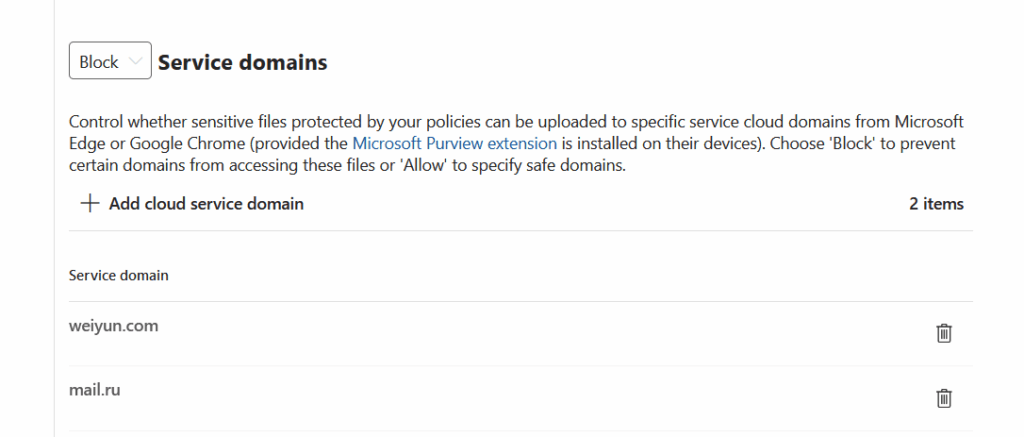
3. Monitor Email Communications

Email remains a primary vector for data theft. Block or monitor communications with popular email services from these regions, including Yandex.Mail, Mail.ru, QQ Mail, and 163.com. Your DLP policies can flag or prevent sensitive data from being sent to these domains.

4. Track Your Data’s Journey

Use Purview Information Protection’s Track and Trace feature to maintain visibility over your sensitive documents. This powerful tool shows you:

• Who’s accessing your protected files

• Where they’re being opened

• When access attempts occur

It’s like having a GPS tracker for your most valuable data.

5. Regular Health Checks with SharePoint Advanced Management

Don’t set and forget. Use SharePoint Advanced Management to regularly review:

• Which files are being shared externally

• Who has access to sensitive documents

• Unusual sharing patterns that might indicate compromise.

Think of it as your monthly data health check-up.

Read up on how SharePoint Advance management works here: https://learn.microsoft.com/en-us/sharepoint/advanced-management
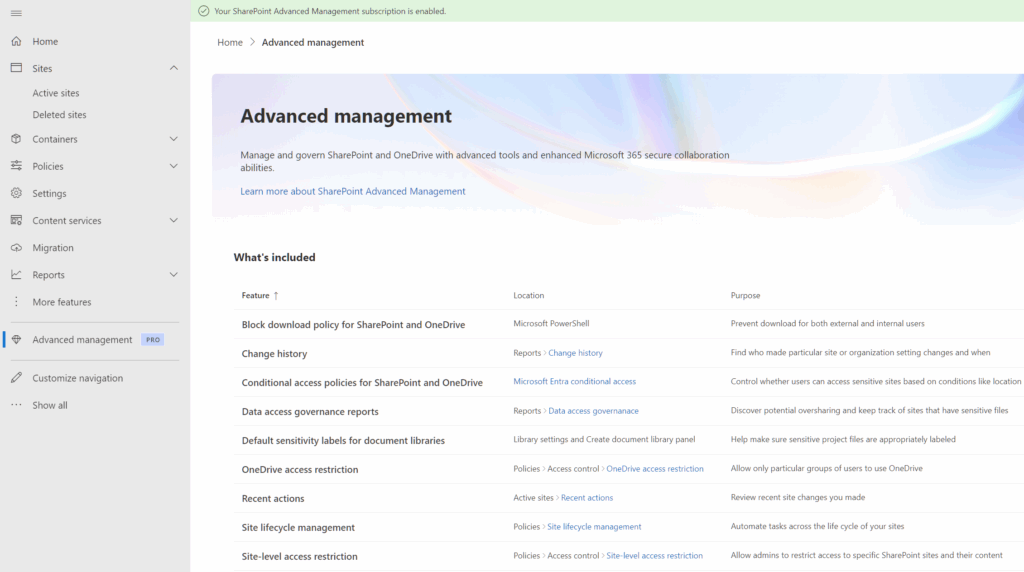

Additional tips:

Tip 1 : Start with monitoring and alerting rather than outright blocking. This lets you understand your data flows before implementing restrictions. You can always tighten controls once you’ve mapped legitimate business needs.

Tip 2: Consider creating exceptions for specific, verified business partners rather than blanket country blocks. This gives you granular control whilst maintaining necessary business relationships.

Remember, technology is only as strong as the people using it. Train your team to recognise suspicious requests and understand why these protections matter.
Recommended solutions when Encryption breaks your workflows

If you’ve read my previous blog post on what breaks when you turn on Encryption with sensitivity labels (read it here: When Encryption breaks reality)

Now we will look into how we can remediate it with these practical solutions that works in the real world.

1. Establish clear data storage policies

The recommended solution: Codify in your Information Security Standards that confidential or sensitive data must NOT be stored in third-party systems.

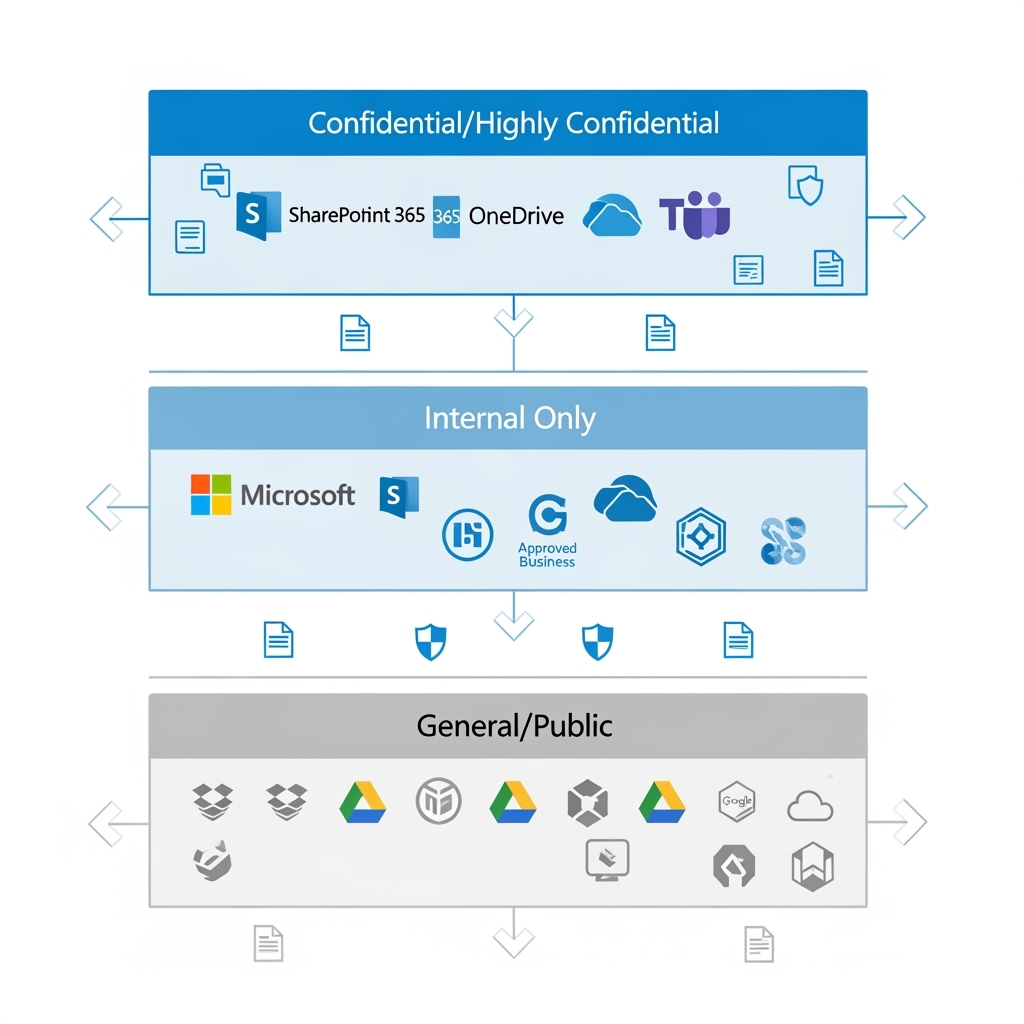
Why this works: By keeping sensitive data within Microsoft 365’s ecosystem, you maintain full control over encryption, access permissions, and audit trails. Microsoft 365 provides native integration between all its services—from SharePoint and OneDrive to Teams and Outlook—ensuring encrypted documents work seamlessly across your organisation’s approved platforms.

Implementation tip: Create a simple classification guide that shows users exactly which data types belong where. Make it clear that “Confidential” and above stays in Microsoft 365, while “General” business information can live elsewhere.

2. Educate users on platform selection

The recommended solution: Train your end-users on what platforms to use, when to use them, and how to properly share confidential data.

Why this works: Most encryption-related issues stem from users not understanding the boundaries of their tools. When people know that encrypted documents won’t work in Dropbox, they’ll choose SharePoint instead.

Implementation tip: Create simple decision trees: “Need to share confidential data externally? Use secure email with expiry dates. Need to collaborate on sensitive documents? Use SharePoint with guest access controls.”

3. Configure service accounts for automation

The recommended solution: For AI and RPA systems (especially in-house built ones), add the named user accounts that run these systems to your encryption policies as approved users.

Why this works: Many automation systems use dedicated service accounts to access files. By explicitly granting these accounts decryption rights, your automated workflows continue functioning while maintaining security controls.

Implementation tip: Create a dedicated security group for automation accounts and include this group in your sensitivity label encryption settings. This makes it easier to manage permissions as you add more automated systems.

4. Implement data minimisation for BI tools

The recommended solution: Third-party BI tools should not access confidential data directly. Instead, use data minimisation, anonymisation, and masking techniques.

What this means: Data minimisation involves only sharing the minimum data necessary for analysis. Data anonymisation removes personally identifiable information, while data masking replaces sensitive values with realistic but fake data that maintains statistical properties.

Why it’s important: This approach protects sensitive information while still enabling business intelligence. Your sales dashboard can show trends and patterns without exposing individual customer details or confidential pricing information.

Implementation tip: Create sanitised data exports specifically for BI tools, removing or masking sensitive fields before the data leaves your secure environment.

5. Standardise PDF readers organisation-wide

The recommended solution: Ensure all devices run the same, supported version of PDF readers using Intune, Group Policy, or IT deployment checklists.

Why this works: Consistency eliminates the “it works on my machine” problem. When everyone uses Adobe Reader/Acrobat version 22 or later, encrypted PDFs open reliably across your organisation.

Implementation tip: Include PDF reader version checks in your device compliance policies. Set up automatic updates where possible, and create a simple verification script for IT teams to run during device setup.

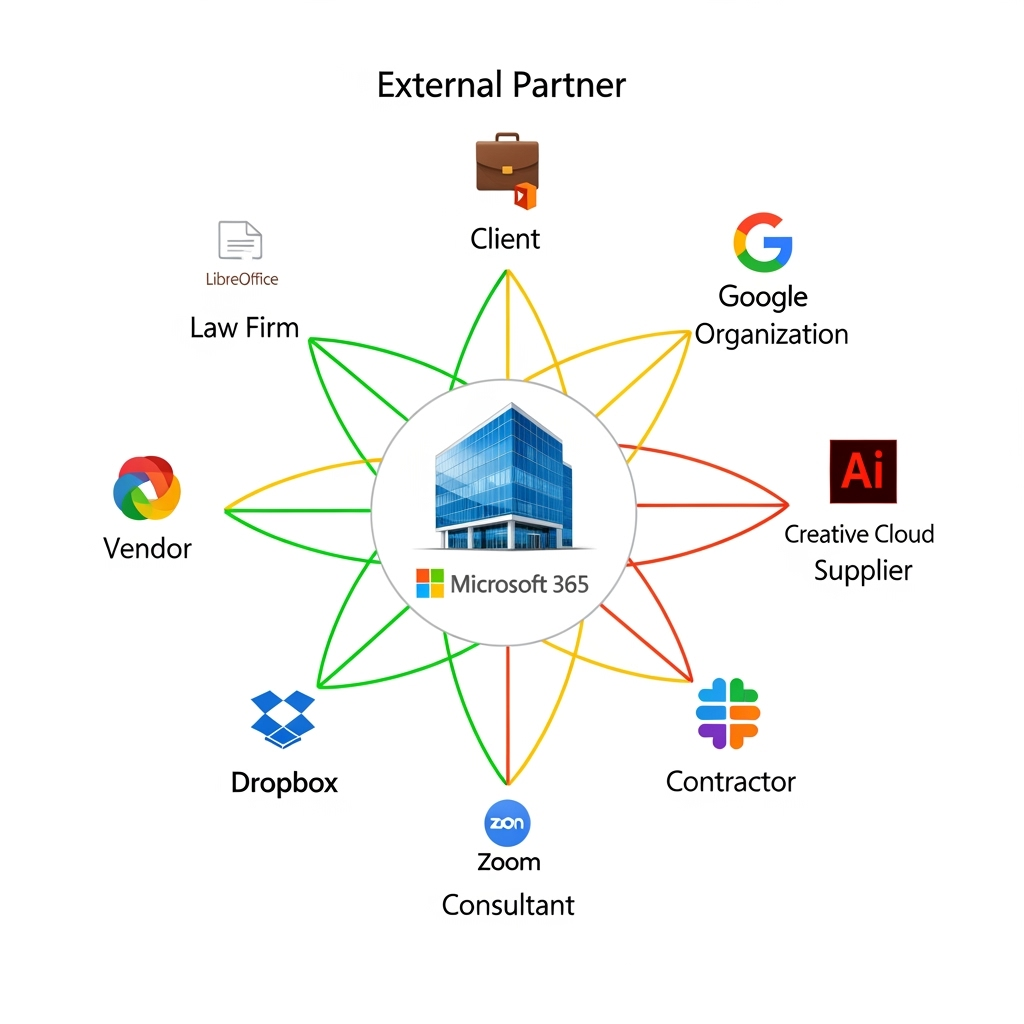
6. Map your external ecosystem

The recommended solution:: Understand what software your vendors, suppliers, and customers are using before sharing encrypted documents.

Why this works: Knowing that your vendor/ partner/ supplier/ law firm uses LibreOffice or your client prefers Google Docs helps you choose the right sharing method upfront, avoiding embarrassing “I can’t open your file” conversations.

Best practice examples:

  • Maintain a simple spreadsheet of key partners and their preferred platforms
  • Ask about software compatibility during vendor onboarding
  • Include system requirements in your standard contract templates
  • Create partner-specific sharing guidelines for your teams

7. Identify critical platform dependencies

The recommended solution: In connection to item 6, note which critical partners use non-Microsoft platforms that could be impacted by encrypted data sharing, then ensure users know the right channels for sensitive data exchange.

Why this works: This builds on your data storage policies (solution 1) and user education (solution 2) by creating specific guidance for high-stakes relationships.

Implementation tip: For critical partners who can’t handle encrypted files, establish secure alternatives like password-protected SharePoint links with expiry dates, or use secure email gateways that work across platforms.


Two additional best practices you shouldn’t miss

8. Create encryption exception processes

The recommended solution: Establish a formal process for temporarily removing encryption when legitimate business needs arise.

Why you need this: Sometimes encrypted documents genuinely need to be shared with systems that can’t handle them. Rather than having users work around security controls, create an approved exception process with proper approvals, time limits, and audit trails.

9. Implement regular compatibility testing

The recommended solution: Schedule quarterly tests of your encryption policies against your actual business workflows.

Why this matters: Software updates, new vendor relationships, and changing business processes can break previously working encryption setups. Regular testing catches these issues before they impact critical business operations.

Implementation tip: Create a simple test matrix covering your most common document types, sharing scenarios, and external platforms. Run through this checklist each quarter and after major system updates.


Remember: The goal isn’t perfect security—it’s effective security that people can actually use.

When Encryption Meets Reality: What Actually Breaks When You Deploy Sensitivity Labels

Microsoft Purview’s sensitivity labels are brilliant for protecting your organisation’s data—until they’re not. While the encryption capabilities of labels like “Highly Confidential” and “Internal Only” provide robust security, they can also create unexpected roadblocks that’ll have your users reaching for the IT helpdesk.

I’ve previously written several blog post on the subject that you can read

Adding to what I’ve already mentioned above, let’s explore the seven other common issues when encryption through sensitivity labels meets the real world.

1. Third-Party Cloud Storage Platforms

What breaks: Dropbox, Adobe Creative Cloud, DocuSign, and similar platforms

Why it happens: Purview treats these as external environments and blocks access to encrypted content. Your beautifully protected document becomes a digital paperweight the moment someone tries to edit it outside the Microsoft 365 ecosystem.

2. AI and RPA Systems

What breaks: Third-party artificial intelligence tools and robotic process automation systems

Why it happens: These systems need to read and process your data, but encryption renders the content unreadable to external AI engines.

The impact: Your automated processing stops working, chatbots can’t access knowledge base documents, and data extraction workflows grind to a halt.

3. Business Intelligence Dashboards

What breaks: Third-party analytics platforms that pull data from encrypted Excel files.

Why it happens: BI tools can’t decrypt and read the underlying data in your spreadsheets, leaving your dashboards empty or displaying errors.

The impact: Executive reports fail to update, sales dashboards show no data, and business intelligence grinds to a halts

4. Legacy Adobe PDF Readers

What breaks: Adobe versions older than Adobe Reader/Acrobat 22

Why it happens: Older Adobe versions lack the necessary components to handle Purview’s encryption standards.

The impact: Users with older software installations can’t open encrypted PDFs, creating accessibility issues across different departments or external partners.

As per Microsoft the version that supports labelling is version 22.003.20258

Adobe’s official documentation is more update and it shows version 23.003.20201.1ec7624

In my personal experience, I’ve seen devices that has Acrobat 21, 19 and 15 not even be able to open up encrypted PDF files.

5. Online PDF Viewers

What breaks: Browser-based PDF viewers (with the exception of Microsoft Edge)  and 3rd party PDF reader apps.

Why it happens: These lightweight PDF viewers (ex. Nitro PDF and PDFgear) don’t have the decryption capabilities required for Purview-protected documents.

The impact: Document previews fail, web-based workflows break. Users using 3rd party reader apps either is not able to open the files or gets an error message when they open an encrypted PDF.

6. Open Source Office Suites

What breaks: LibreOffice, OpenOffice, and similar free alternatives

Why it happens: These applications lack the proprietary decryption libraries needed to handle Microsoft’s encryption.

The impact: Your vendors, remote branch offices or sub-member firms who runs their own IT systems who are using these free office software suddenly can’t access company documents, creating a two-tier system of document access.

I’ve checked the LibreOffice documentation and could not find any mention of support for RMS.

7. Non-Microsoft Productivity Platforms

What breaks: Google Workspace (Docs, Sheets, Slides) and Apple iWork (Pages, Numbers, Keynote)

Why it happens: Competing platforms don’t support Microsoft’s encryption standards—hardly surprising, but often overlooked during planning and deployment.

You can read more about that here:

Does sensitivity label applied docs can be opened in google docs if I add my google account while applying the label?

Also, Google Workspace has a competing data classification scheme: Enable or disable a classification label which is why I think it not likely that Google will make this cross-platform work.

The impact: Cross-platform collaboration becomes impossible, and BYOD policies clash with security requirements.


If you encounter any of these, read part 2 with my recommended actions/ workarounds.

When Purview SIT NAMES gives me headaches

There are now 326 built-in Purview SIT (as of 07-June-2025). The new addition great but Microsoft needs to do a better job in managing how SIT’s documented and communicated to it’s users. Here’s my quick rant on this matter:

Rant 1: The Update list that is stuck in February 2024

    The official Microsoft page (Sensitive information type entity definitions) hasn’t been updated since February 7, 2024. Seriously? 1 year and five months and counting.

    Why it’s frustrating: We’re stuck creating custom SIT because the docs are MIA. (Although, I did win a project out of creating custom SIT – but still!)

    Rant #2: Inconsistencies in SIT naming

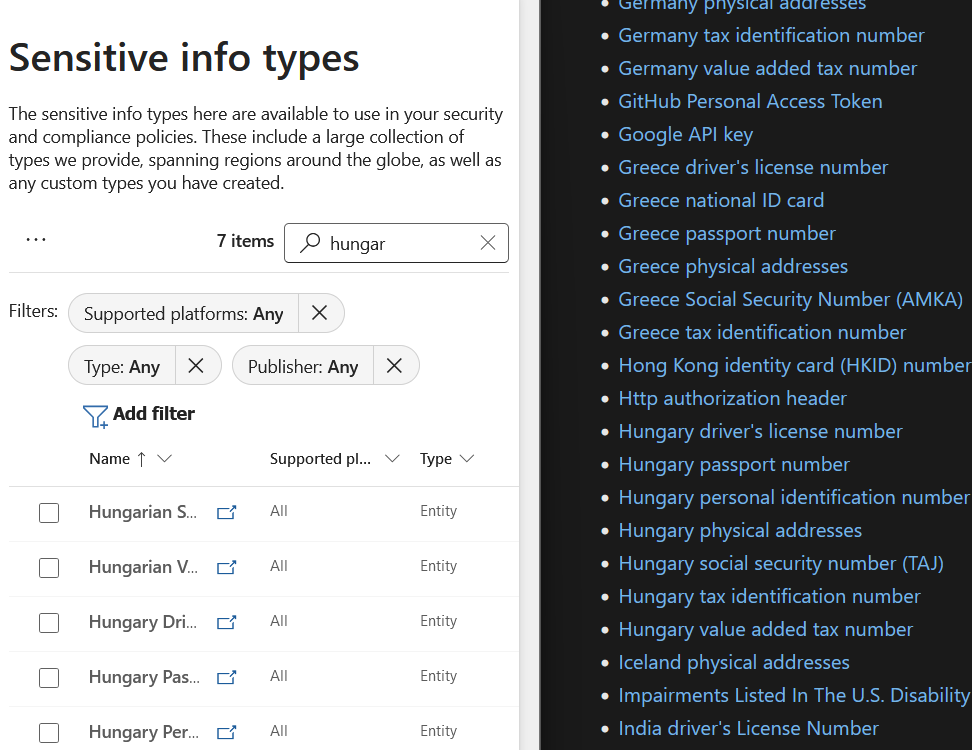
    If you compare the SIT names in the In the official documentation against the SIT names that you get in the Purview portal, the names that are used shows up are different.

    You can see in this image below that in the Purview Portal (left), There are items such as Hungarian Social Security number versus Hungary Social security number.

    Some of the names have an added n (Australian instead of Australia), some have the words Identification spelled out instead of ID. There’s a long list of inconsistencies with the naming.

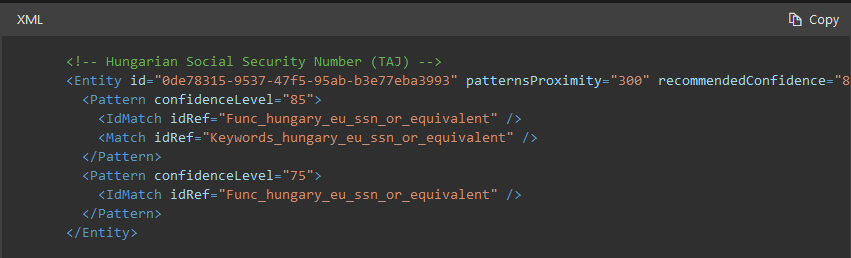
    Admittedly, from within their XML data, the names are correct. So now I ask the product team, why have the names in the documentation title be different then?

    Rant 3: No announcements when new Built-it SITs are out

    There are no announcement to the Purview community when new built-in SITs comes out. I had to manually check every now and then by exporting a list of SIT and comparing it with previous data. Good thing I keep a track of what comes out (read my latest post on the matter: https://www.linkedin.com/pulse/12-new-sits-available-microsoft-purview-victor-wingsing-uzzze/)


    Advise to Purview admins

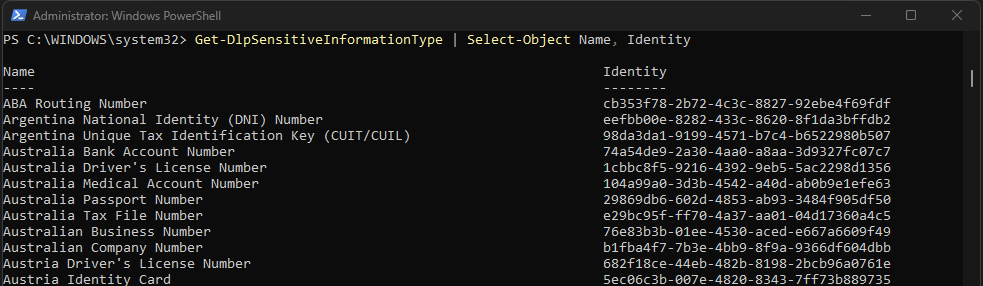
    Use the Immutable IDs when deploying SITs. Use the following command to export all the ID in a csv file

    Get-DlpSensitiveInformationType | Select-Object Name, Identity | Export-Csv -Path "SIT_Names_and_IDs.csv" -NoTypeInformation
    
    Change the path name to a location where you want the file to be exported.

    Using the Immutable Identity (ID) is better when deploying your Purview policies as names could easily change but these ID (as the name implies) are immutable. This makes your deployment scripts future-proof.