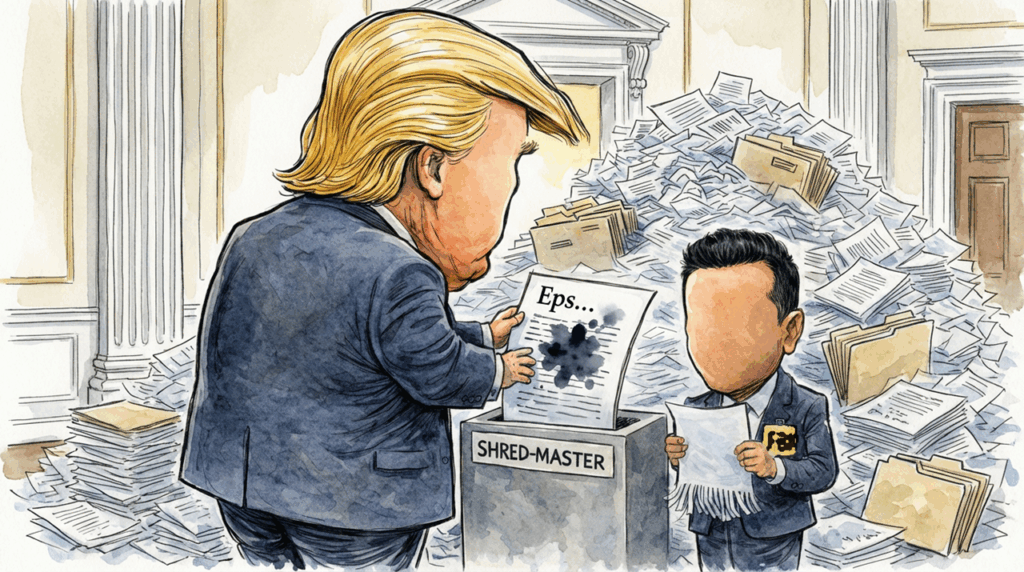
As I was watching YouTube, I happen to see in my FYP this gem of a skit from SNL: MacGruber: Epstein Files – SNL.
This got me thinking of how one can go about in effectively deleting data that you don’t want other people to see in M365 without resorting to strapping the documents to an explosive. (seriously go watch the skit!)
This article is about that. Some days you build walls. Other days you tear them down.
As Data Defenders, our bread and butter is protection: from applying encryption, access controls, monitoring. But occasionally the job flips. A regulator orders you to delete everything you hold on a data subject. Or someone hits “reply all” on a spreadsheet full of passport numbers. Now you’re not guarding the vault. You’re burning the documents.
The difference between doing this well and doing it badly?
Read the story of Clearview AI, who was told to delete UK facial recognition data and fined £7.5 million for failing. And Serco, who was ordered to erase 10 years of unlawfully processed employee biometrics.
Both cases prove the same point: Deletion isn’t the absence of action. It’s a discipline.
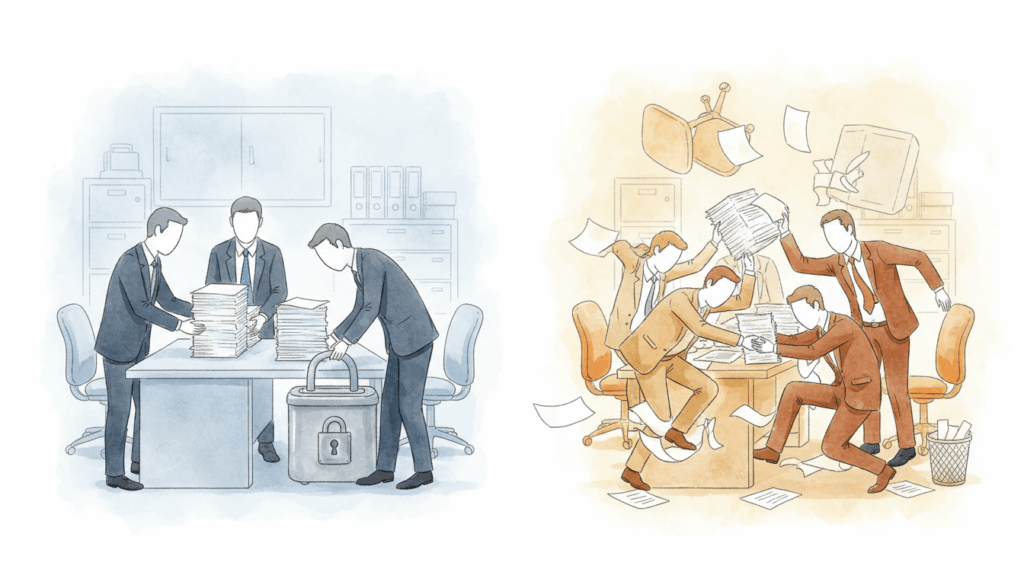
Data Spillage and Regulatory Deletion
Data landing where it shouldn’t, it could be that data was sent to wrong recipient, wrong system, wrong country. The clock starts ticking immediately.
But this is not the only scenario where deletion matters. There are two distinct situations that demand the same discipline:
Data Spillage: Sensitive information escapes its boundaries. A spreadsheet of salaries sent to the entire company. Customer records emailed to a personal address.
Regulatory Order: A data protection authority instructs you to erase specific data, often following a breach investigation or unlawful processing finding. This is not optional. The regulator sets the timeline. The penalty for non-compliance is public, financial, and lasting. (see the linked cases for Clearview and Serco above)
Both situations share the same requirement: complete, verifiable, irreversible deletion. Not user deletion. Not admin deletion. Forensic deletion with an audit trail.
This what “deleted” actually means in Microsoft 365:
- User deletion = item sits in Recycle Bin for 93 days, recoverable by anyone with permissions
- Admin deletion = item moves to second-stage Recycle Bin, still recoverable
- Version history = every previous save remains intact, invisible to users but fully restorable
True deletion means stripping every copy, every version, every trace from every location. And doing it fast enough to matter. That is where most organisations fail. Not from lack of intent. From lack of tooling.
The Tools: Microsoft Purview Priority Cleanup
Microsoft 365 offers three ways to delete data. Most people already knows the first two. The third is the one you need.
Option A: Manual deletion. Users delete emails. Admins empty recycle bins. This takes hours, misses version history, and leaves forensic traces everywhere. It’s manual and cumbersome to check.
Option B: eDiscovery search and purge. Faster, scripted, covers Exchange Online. But it stops at 10 items per mailbox on E3 licences. It cannot touch SharePoint or OneDrive files. And it fails silently against retention holds.
Option C: Priority Cleanup. This is the tool built for the job.
Priority Cleanup sits inside Purview Data Lifecycle Management. It uses KQL queries to find content across Exchange Online, SharePoint Online, and OneDrive. It bypasses retention policies and legal holds. It enforces a two-person approval rule. And it leaves an audit trail that satisfies regulators.
The trade-off is time. Priority Cleanup takes up to seven days for full propagation. It requires an E5 licence. And it cannot delete records marked as regulatory records or items locked in active eDiscovery review sets.
Guide: Setup your Priority Cleanup
Here’s the step by step guide to get Priority clean up working. (note that this requires an E5 license*
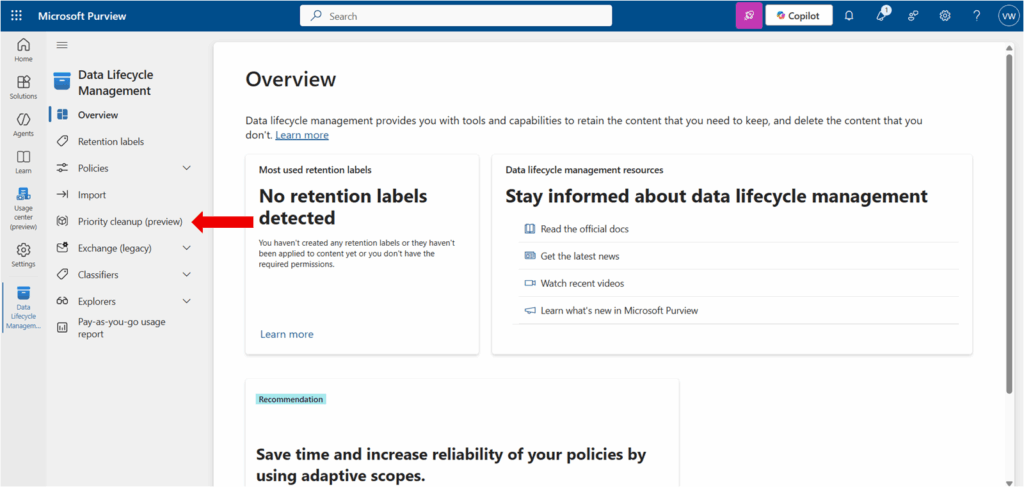
- 1: In Microsoft Purview, go to the Data Lifecycle Management solution, select Priority cleanup
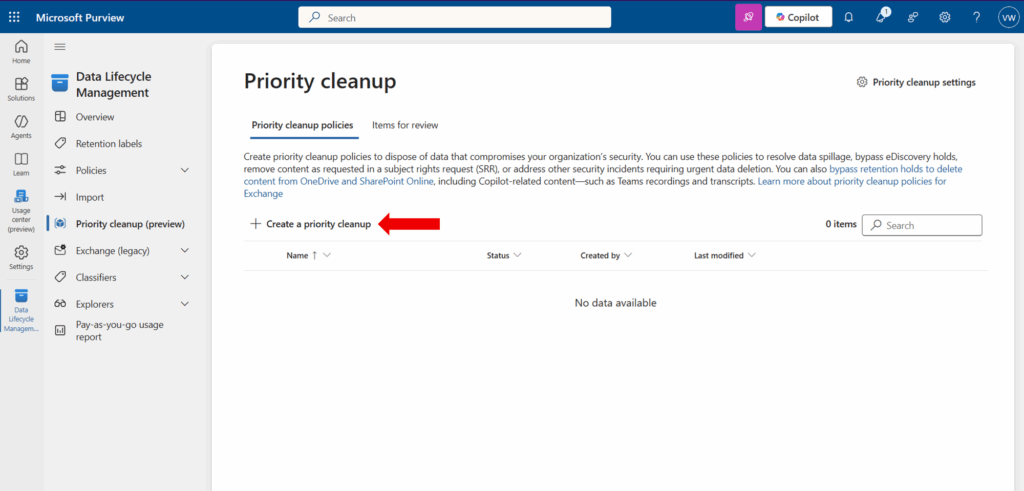
- 2: Create a priority clean up
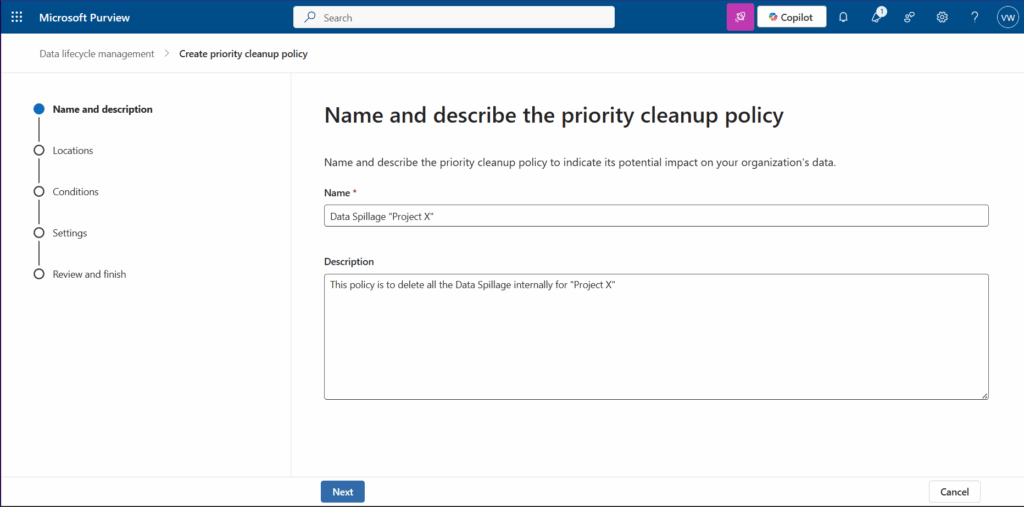
- 3: Give it a name and then choose which type of policy to create
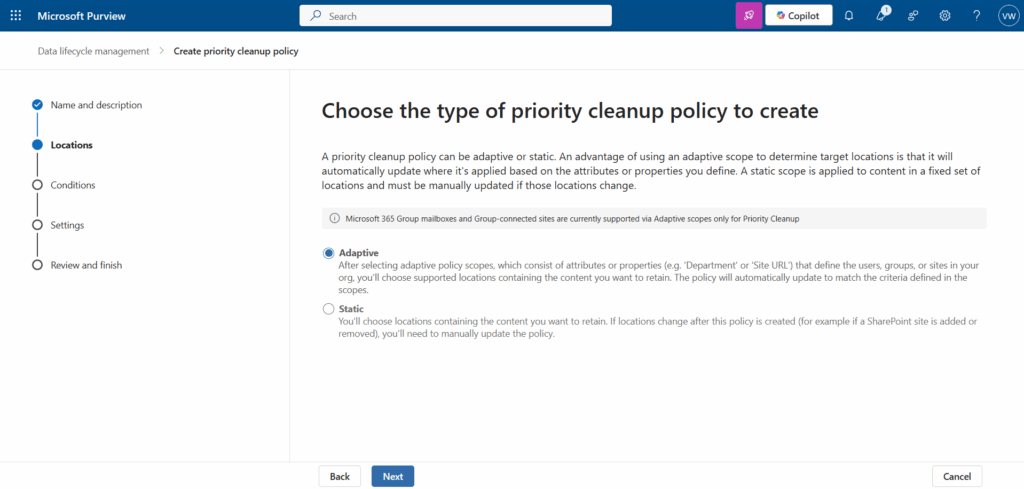
Adaptive scopes let you set rules instead of picking individual locations. You might target “all mailboxes in the Finance department” or “all SharePoint sites with ‘Project X’ in the URL.” The policy updates automatically when people join, leave, or sites change. This suits large organisations with frequent movement. To learn more about adaptive scopes, read this: https://learn.microsoft.com/en-us/purview/purview-adaptive-scopes
Static scopes require you to select specific mailboxes, sites, or OneDrive accounts by name. The policy only applies to what you selected. If the situation changes, you must update it manually. This suits known, fixed incidents where precision matters more than flexibility.
For most data spillage responses, my recommendation is to use Static.
- 4: Choose the location where you want to apply the policy
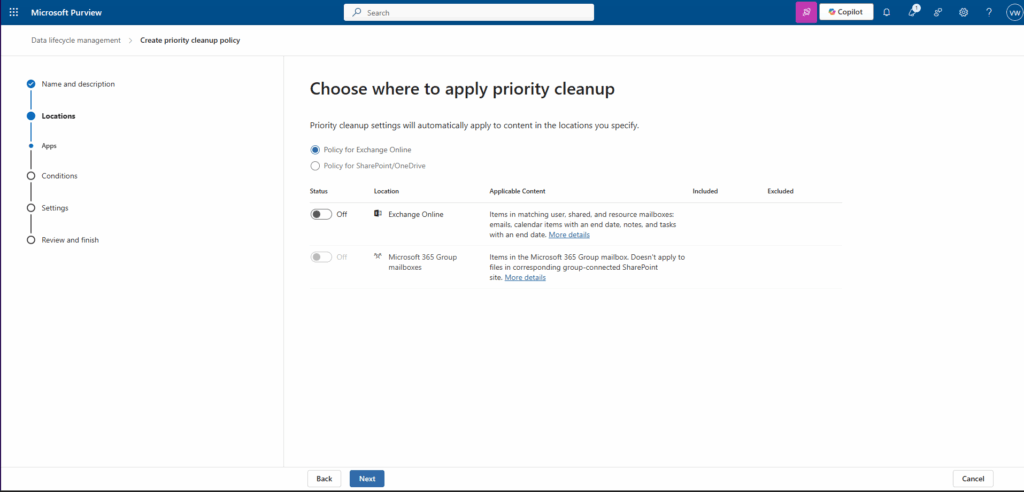
Note: If you need to run it in Exchange AND SharePoint/OneDrive, you will need to create 2 policies.
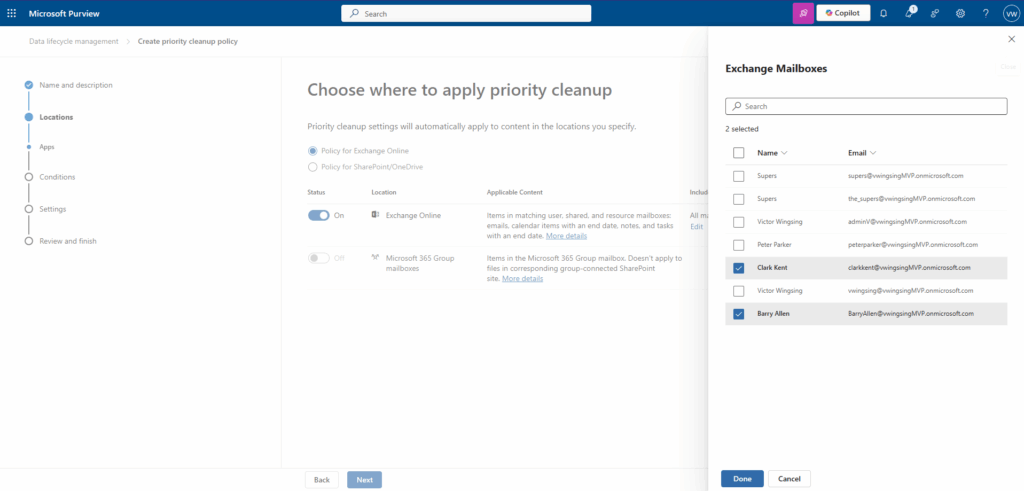
- 5: Select your target location. In this example. I’ve selected 2 users mailboxes that will be in scope of the policy.
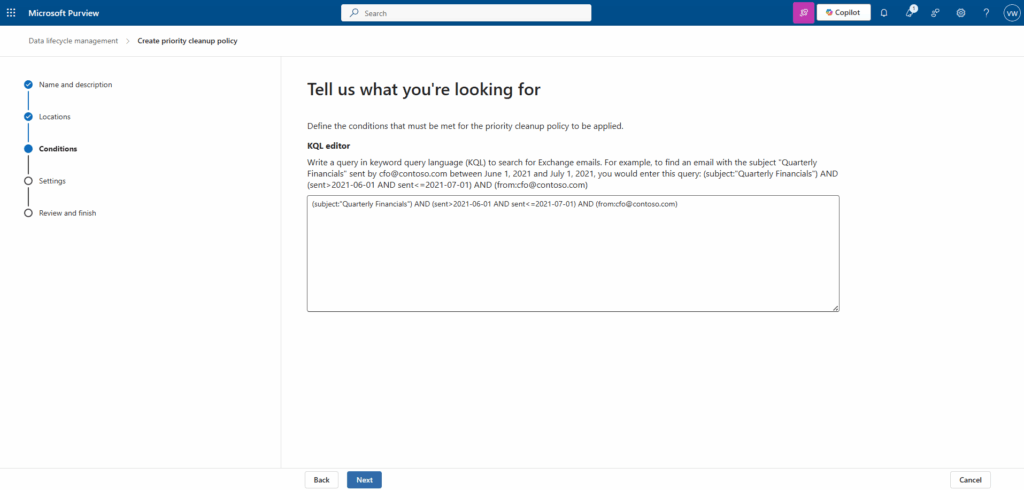
- 6: Use KQL Editor to specify what you are looking for. Pro tip: The more specific your query is the better the outcome.
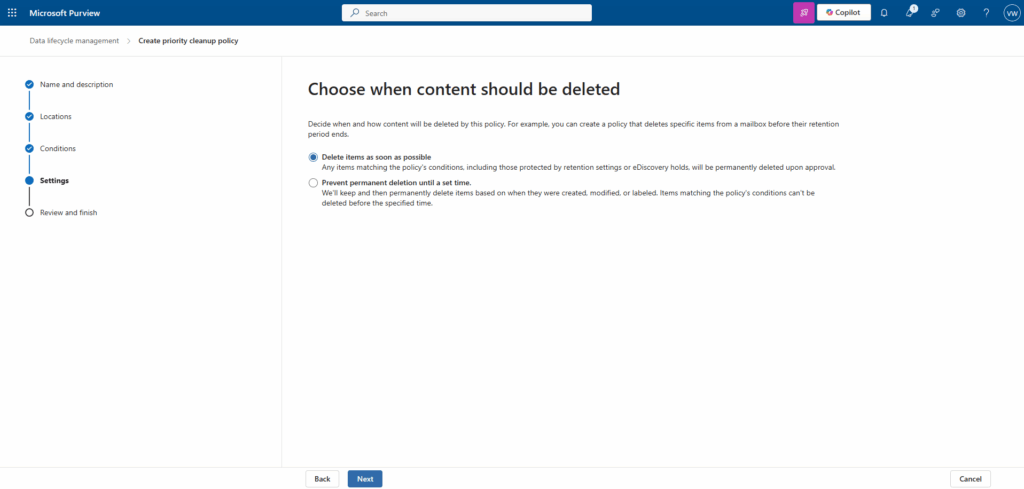
- 7: Choose when the content is to be deleted. Pro tip: In most regulatory mandate, it is ASAP.
- 8: Set your approvers. Manage The Three approvers
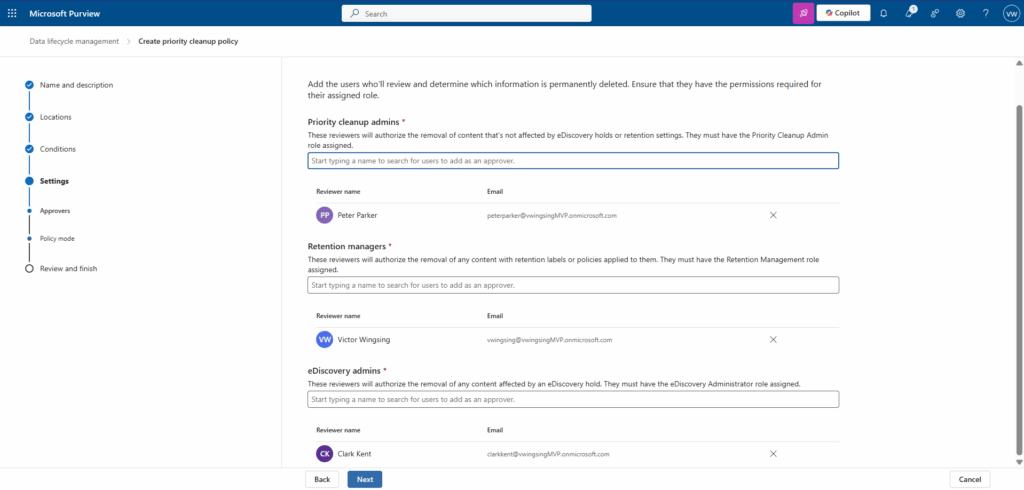
Priority Cleanup enforces a two-person rule. The person who creates the policy cannot approve it. You must assign at least one reviewer per stage, and each stage requires specific roles.
Priority Cleanup Admin
Creates and manages policies. Enables or disables the feature. Can approve items in the initial approval stage. This role sits in the Organisation Management group by default. If you create a custom role group, you must add it manually.
Retention Manager
Handles the retention review stage. Checks that deletion aligns with your organisation’s retention schedule. Ensures you are not destroying records that must be kept. Required roles: Retention Management, Data Classification Content Viewer, Data Classification List Viewer, Disposition Management.
eDiscovery Admin
Performs the final legal and compliance review. Confirms no active litigation or investigation would be compromised by deletion. Required roles: Search and Purge, Hold, Review, Data Classification Content Viewer, Data Classification List Viewer, Disposition Management.
Critical point: Assign these roles before you create the policy. If an approver lacks the correct permissions, policy creation fails immediately. You cannot fix this mid-process.
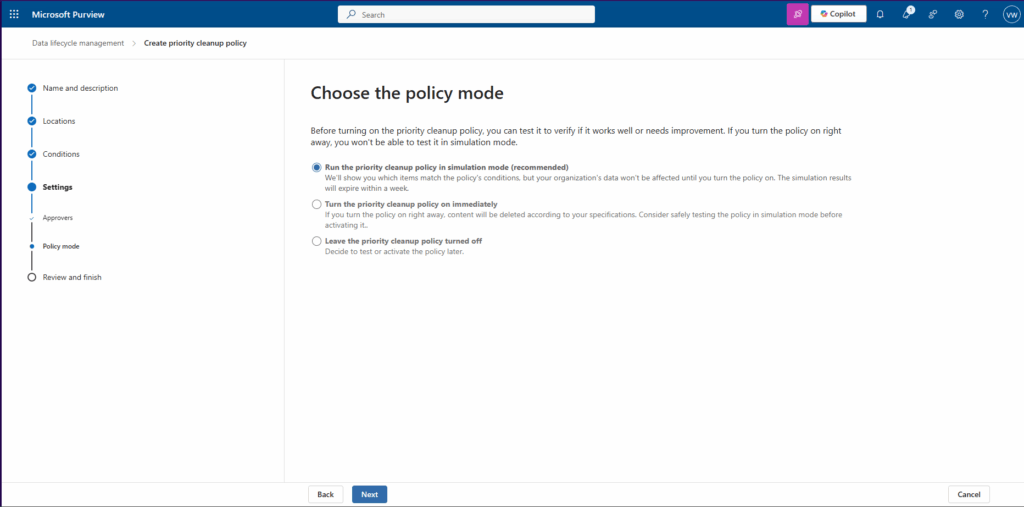
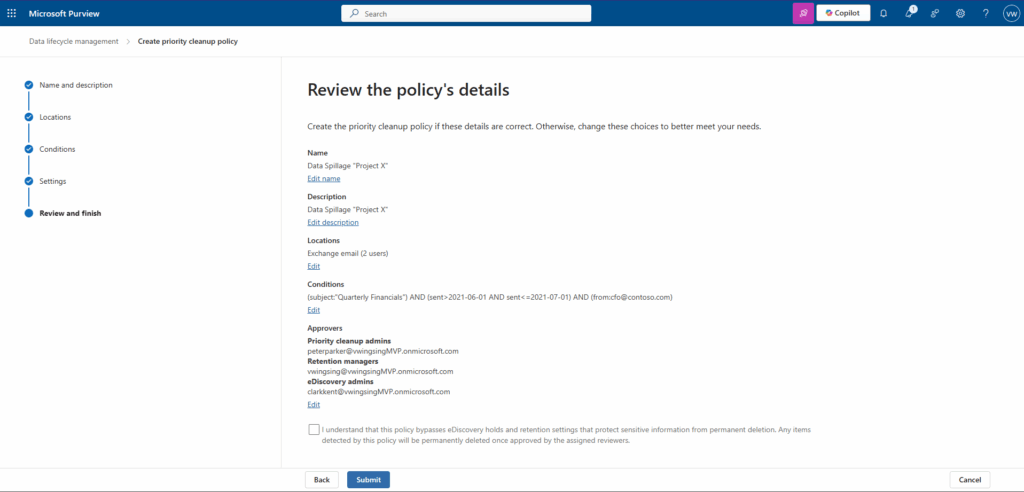
- 9: Decide how you want to run it. Pro tip: Simulation is a good start. You don’t want to start deleting files without getting some insights first.
- 10: Tick the box to bypass eDiscovery holds and retention and save settings.
Limitations and Caveats
Priority Cleanup is not a magic eraser.
- E5 licence required. E3 tenants need the emergency scripts from earlier in this playbook.
- Up to seven days. Not instant. Plan accordingly.
- Two-person rule enforced. The creator cannot approve their own policy.
- Mail-enabled security groups unsupported. Approvers must be individual users with correct roles pre-assigned.
- Records and review sets are protected. Items marked as regulatory records or held in active eDiscovery review sets will not delete.
- Teams chat excluded. Separate process required.
Proper data deletion is a skill. It requires the right tools, the right permissions, and the right process. Most importantly, it requires proof, an audit trail showing what was deleted, when, and by whom.
Unlike certain government file releases, where pages arrive heavily redacted, incomplete, or somehow “missing” entirely, Priority Cleanup gives you certainty. No black bars. No gaps. No questions about what happened to the originals.
Just gone.
For the detailed Microsoft Learn article that covers this topic, go over to the following links:
Search and Purge and Priority Clean up Exchange
You can also read-up on the detailed outcome of this solution from my fellow MVPs
Practical365 and the 2 part series for Michev: Priority Clean up – Part 1 & Priority Clean up – Part 2