Recommended solutions when Encryption breaks your workflows

If you’ve read my previous blog post on what breaks when you turn on Encryption with sensitivity labels (read it here: When Encryption breaks reality)

Now we will look into how we can remediate it with these practical solutions that works in the real world.

1. Establish clear data storage policies

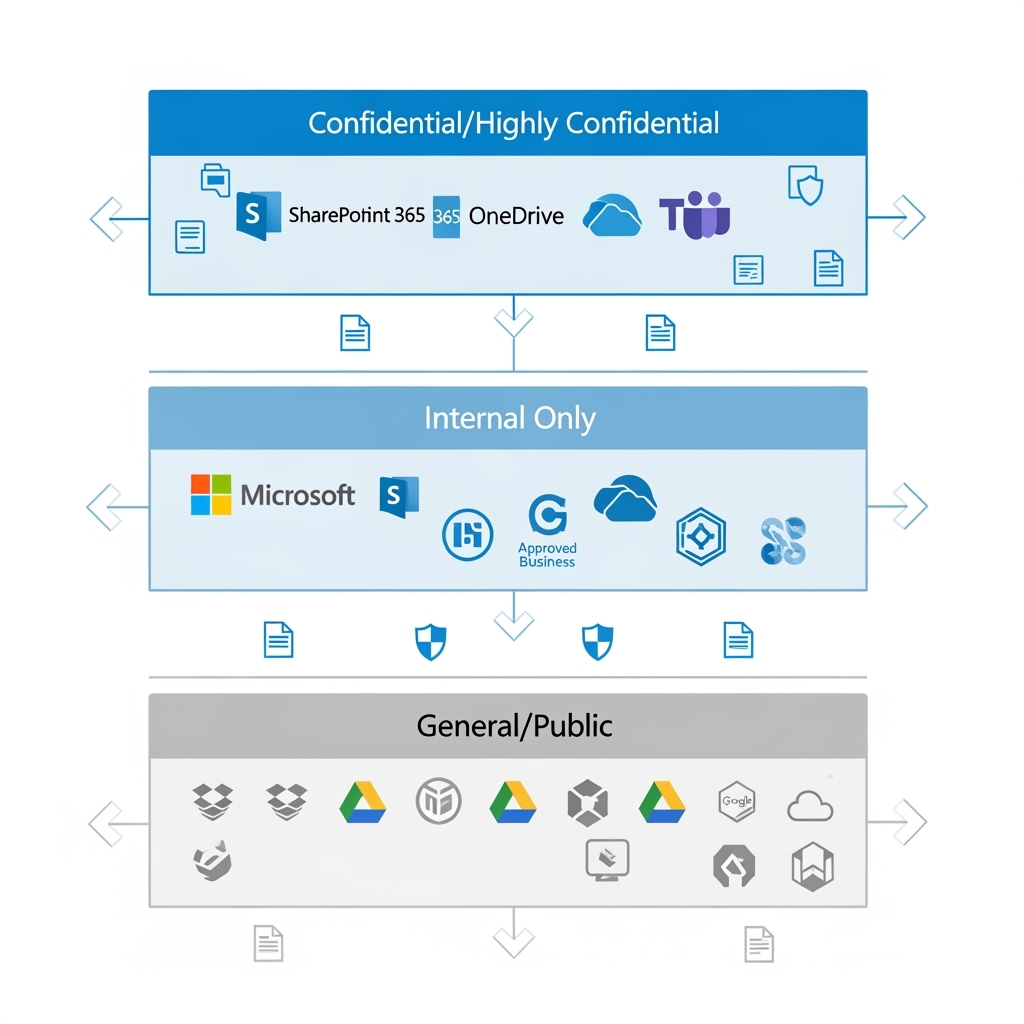
The recommended solution: Codify in your Information Security Standards that confidential or sensitive data must NOT be stored in third-party systems.

Why this works: By keeping sensitive data within Microsoft 365’s ecosystem, you maintain full control over encryption, access permissions, and audit trails. Microsoft 365 provides native integration between all its services—from SharePoint and OneDrive to Teams and Outlook—ensuring encrypted documents work seamlessly across your organisation’s approved platforms.

Implementation tip: Create a simple classification guide that shows users exactly which data types belong where. Make it clear that “Confidential” and above stays in Microsoft 365, while “General” business information can live elsewhere.

2. Educate users on platform selection

The recommended solution: Train your end-users on what platforms to use, when to use them, and how to properly share confidential data.

Why this works: Most encryption-related issues stem from users not understanding the boundaries of their tools. When people know that encrypted documents won’t work in Dropbox, they’ll choose SharePoint instead.

Implementation tip: Create simple decision trees: “Need to share confidential data externally? Use secure email with expiry dates. Need to collaborate on sensitive documents? Use SharePoint with guest access controls.”
3. Configure service accounts for automation

The recommended solution: For AI and RPA systems (especially in-house built ones), add the named user accounts that run these systems to your encryption policies as approved users.

Why this works: Many automation systems use dedicated service accounts to access files. By explicitly granting these accounts decryption rights, your automated workflows continue functioning while maintaining security controls.

Implementation tip: Create a dedicated security group for automation accounts and include this group in your sensitivity label encryption settings. This makes it easier to manage permissions as you add more automated systems.

4. Implement data minimisation for BI tools

The recommended solution: Third-party BI tools should not access confidential data directly. Instead, use data minimisation, anonymisation, and masking techniques.

What this means: Data minimisation involves only sharing the minimum data necessary for analysis. Data anonymisation removes personally identifiable information, while data masking replaces sensitive values with realistic but fake data that maintains statistical properties.

Why it’s important: This approach protects sensitive information while still enabling business intelligence. Your sales dashboard can show trends and patterns without exposing individual customer details or confidential pricing information.

Implementation tip: Create sanitised data exports specifically for BI tools, removing or masking sensitive fields before the data leaves your secure environment.

5. Standardise PDF readers organisation-wide

The recommended solution: Ensure all devices run the same, supported version of PDF readers using Intune, Group Policy, or IT deployment checklists.

Why this works: Consistency eliminates the “it works on my machine” problem. When everyone uses Adobe Reader/Acrobat version 22 or later, encrypted PDFs open reliably across your organisation.

Implementation tip: Include PDF reader version checks in your device compliance policies. Set up automatic updates where possible, and create a simple verification script for IT teams to run during device setup.

6. Map your external ecosystem

The recommended solution:: Understand what software your vendors, suppliers, and customers are using before sharing encrypted documents.

Why this works: Knowing that your vendor/ partner/ supplier/ law firm uses LibreOffice or your client prefers Google Docs helps you choose the right sharing method upfront, avoiding embarrassing “I can’t open your file” conversations.

Best practice examples:

  • Maintain a simple spreadsheet of key partners and their preferred platforms
  • Ask about software compatibility during vendor onboarding
  • Include system requirements in your standard contract templates
  • Create partner-specific sharing guidelines for your teams
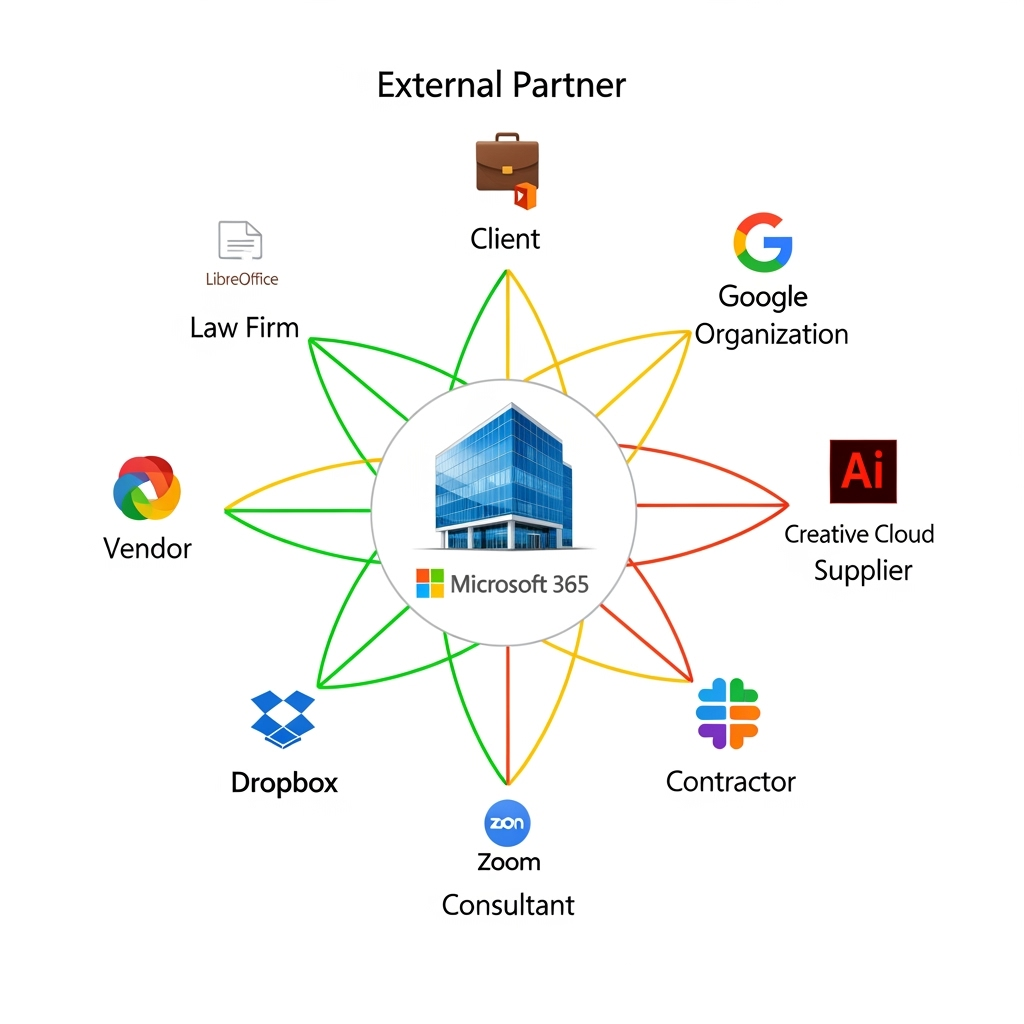
7. Identify critical platform dependencies

The recommended solution: In connection to item 6, note which critical partners use non-Microsoft platforms that could be impacted by encrypted data sharing, then ensure users know the right channels for sensitive data exchange.

Why this works: This builds on your data storage policies (solution 1) and user education (solution 2) by creating specific guidance for high-stakes relationships.

Implementation tip: For critical partners who can’t handle encrypted files, establish secure alternatives like password-protected SharePoint links with expiry dates, or use secure email gateways that work across platforms.


Two additional best practices you shouldn’t miss

8. Create encryption exception processes

The recommended solution: Establish a formal process for temporarily removing encryption when legitimate business needs arise.

Why you need this: Sometimes encrypted documents genuinely need to be shared with systems that can’t handle them. Rather than having users work around security controls, create an approved exception process with proper approvals, time limits, and audit trails.

9. Implement regular compatibility testing

The recommended solution: Schedule quarterly tests of your encryption policies against your actual business workflows.

Why this matters: Software updates, new vendor relationships, and changing business processes can break previously working encryption setups. Regular testing catches these issues before they impact critical business operations.

Implementation tip: Create a simple test matrix covering your most common document types, sharing scenarios, and external platforms. Run through this checklist each quarter and after major system updates.


Remember: The goal isn’t perfect security—it’s effective security that people can actually use.
When Encryption Meets Reality: What Actually Breaks When You Deploy Sensitivity Labels

Microsoft Purview’s sensitivity labels are brilliant for protecting your organisation’s data—until they’re not. While the encryption capabilities of labels like “Highly Confidential” and “Internal Only” provide robust security, they can also create unexpected roadblocks that’ll have your users reaching for the IT helpdesk.

I’ve previously written several blog post on the subject that you can read

Adding to what I’ve already mentioned above, let’s explore the seven other common issues when encryption through sensitivity labels meets the real world.

1. Third-Party Cloud Storage Platforms

What breaks: Dropbox, Adobe Creative Cloud, DocuSign, and similar platforms

Why it happens: Purview treats these as external environments and blocks access to encrypted content. Your beautifully protected document becomes a digital paperweight the moment someone tries to edit it outside the Microsoft 365 ecosystem.

2. AI and RPA Systems

What breaks: Third-party artificial intelligence tools and robotic process automation systems

Why it happens: These systems need to read and process your data, but encryption renders the content unreadable to external AI engines.

The impact: Your automated processing stops working, chatbots can’t access knowledge base documents, and data extraction workflows grind to a halt.

3. Business Intelligence Dashboards

What breaks: Third-party analytics platforms that pull data from encrypted Excel files.

Why it happens: BI tools can’t decrypt and read the underlying data in your spreadsheets, leaving your dashboards empty or displaying errors.

The impact: Executive reports fail to update, sales dashboards show no data, and business intelligence grinds to a halts

4. Legacy Adobe PDF Readers

What breaks: Adobe versions older than Adobe Reader/Acrobat 22

Why it happens: Older Adobe versions lack the necessary components to handle Purview’s encryption standards.

The impact: Users with older software installations can’t open encrypted PDFs, creating accessibility issues across different departments or external partners.

As per Microsoft the version that supports labelling is version 22.003.20258

Adobe’s official documentation is more update and it shows version 23.003.20201.1ec7624

In my personal experience, I’ve seen devices that has Acrobat 21, 19 and 15 not even be able to open up encrypted PDF files.

5. Online PDF Viewers

What breaks: Browser-based PDF viewers (with the exception of Microsoft Edge)  and 3rd party PDF reader apps.

Why it happens: These lightweight PDF viewers (ex. Nitro PDF and PDFgear) don’t have the decryption capabilities required for Purview-protected documents.

The impact: Document previews fail, web-based workflows break. Users using 3rd party reader apps either is not able to open the files or gets an error message when they open an encrypted PDF.

6. Open Source Office Suites

What breaks: LibreOffice, OpenOffice, and similar free alternatives

Why it happens: These applications lack the proprietary decryption libraries needed to handle Microsoft’s encryption.

The impact: Your vendors, remote branch offices or sub-member firms who runs their own IT systems who are using these free office software suddenly can’t access company documents, creating a two-tier system of document access.

I’ve checked the LibreOffice documentation and could not find any mention of support for RMS.

7. Non-Microsoft Productivity Platforms

What breaks: Google Workspace (Docs, Sheets, Slides) and Apple iWork (Pages, Numbers, Keynote)

Why it happens: Competing platforms don’t support Microsoft’s encryption standards—hardly surprising, but often overlooked during planning and deployment.

You can read more about that here:

Does sensitivity label applied docs can be opened in google docs if I add my google account while applying the label?

Also, Google Workspace has a competing data classification scheme: Enable or disable a classification label which is why I think it not likely that Google will make this cross-platform work.

The impact: Cross-platform collaboration becomes impossible, and BYOD policies clash with security requirements.


If you encounter any of these, read part 2 with my recommended actions/ workarounds.

Deep dive in PDF labeling and data protection

Let’s cut to the chase – PDFs are everywhere in your organisation, and they’re housing your sensitive data. I’m talking about those finalised e-signed contracts, bank statements, and countless other critical documents. While we’re all busy protecting our Office files with fancy security measures, PDFs often slip through the cracks. But here’s the thing – they need the same level of classification and protection as your typical .docx or .xlsx files.

Here’s the different ways you could label PDF files and simple to follow deployment strategy to enable PDF data classification to your data.

Labeling PDFs: Three Approaches

  1. Label data natively in Microsoft Office then save it as PDF
  2. Label data using Adobe Acrobat
  3. Label data using the Microsoft Purview In

Read all the way to the end to see what would happen if you use the “Open in PDF Word” function to an encrypted PDF file.

Approach 1: Label natively using Microsoft Office then save it as a PDF

Approach 1: Label Then Save as PDF
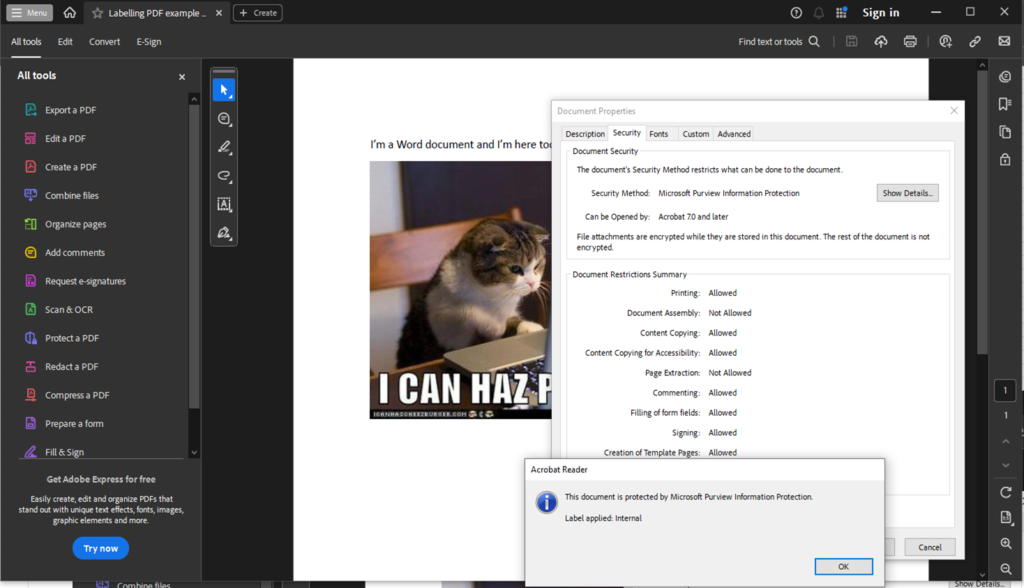
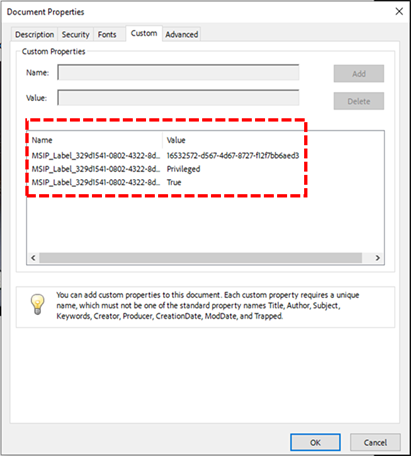
This approach is something you can do now. This method involves applying a sensitivity label directly to an Office document in an application like Microsoft Word, and then saving it as a PDF. Although the label transfers to the PDF, note that if your label incorporates encryption, you must disable the PDF/A option when saving. The resulting PDF will display protection via Purview Information Protection, and its custom properties will indicate the applied label.

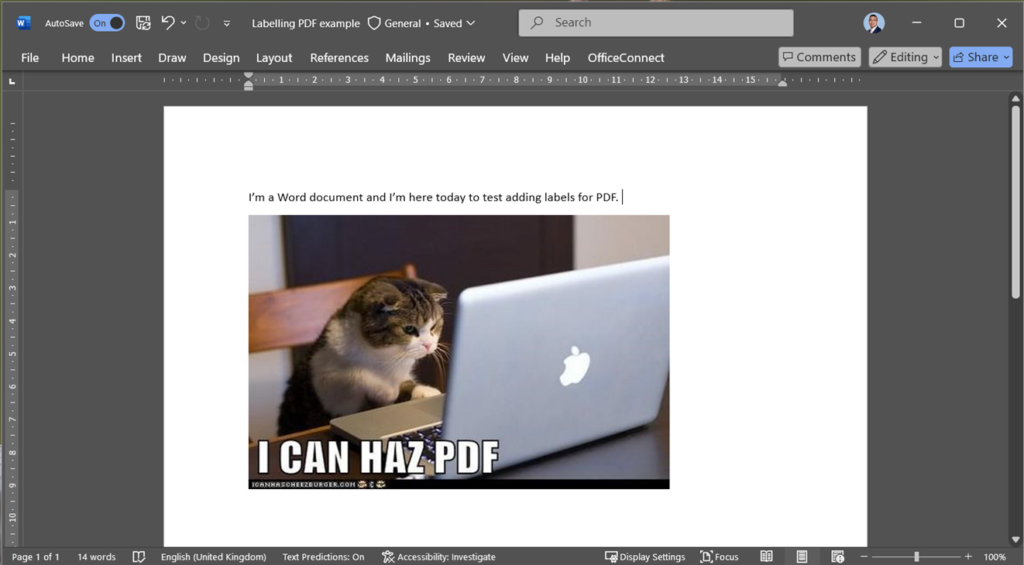
Created a New word document
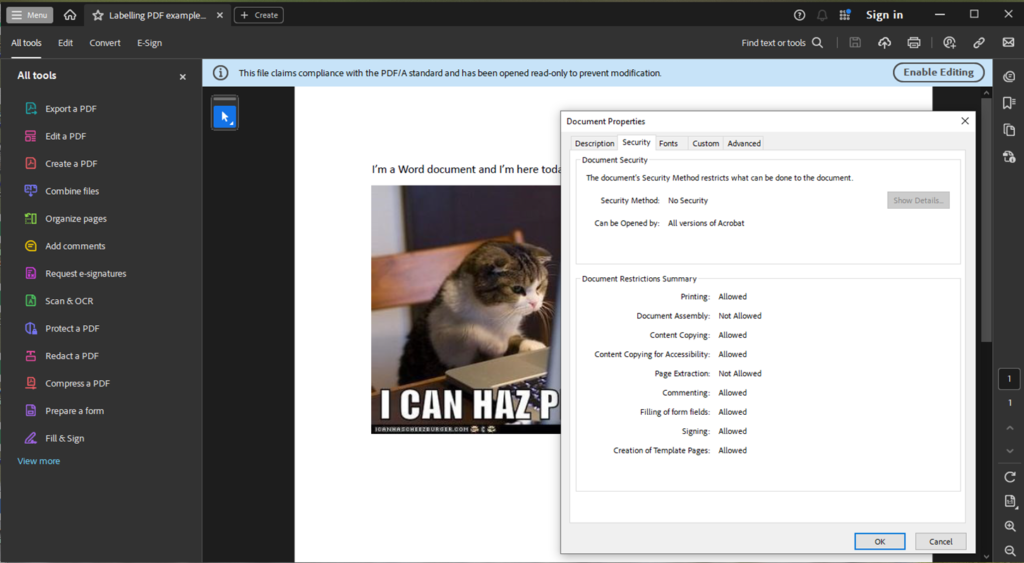
Saved as a PDF. The document security shows no security as the label that I used is just a plain label without any encryption.
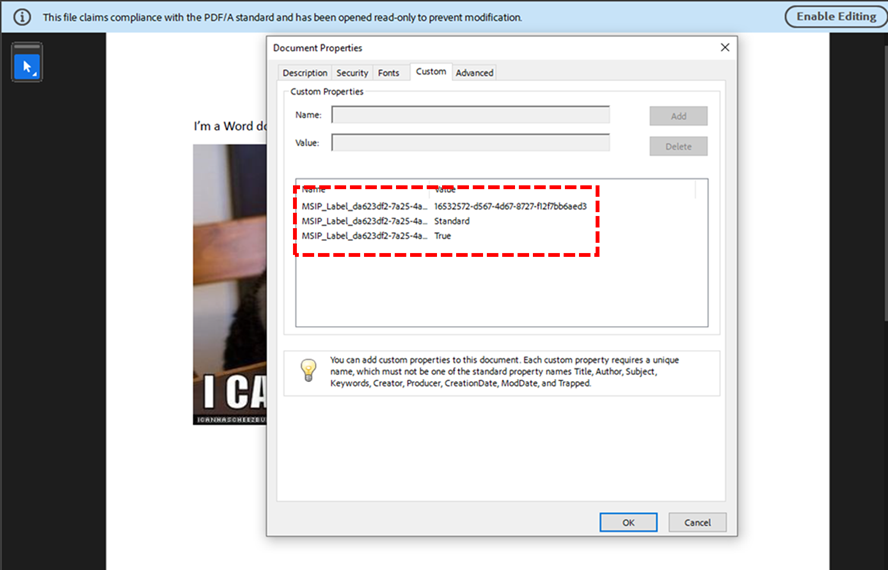
Custom values shows the label that I used.

TAKE NOTE that if your label has ENCRYPTION turned on, then you need to unselect the PDF/A option as you save it.

The security tab displays that it’s protected by Purview Information Protection.
The custom properties shows the Privileged/ Protected / Encrypted label used

Approach 2: Label data using Adobe Acrobat PDF Reader

Here’s where it gets interesting (and a bit challenging). Most of us view these PDFs through web browsers or PDF readers, with Adobe being the undisputed king of the PDF world. In fact, Adobe’s so dominant that in most organisations I’ve worked with, it’s practically become the default way to handle PDFs – much like how we all say “Google it” instead of “search for it”.

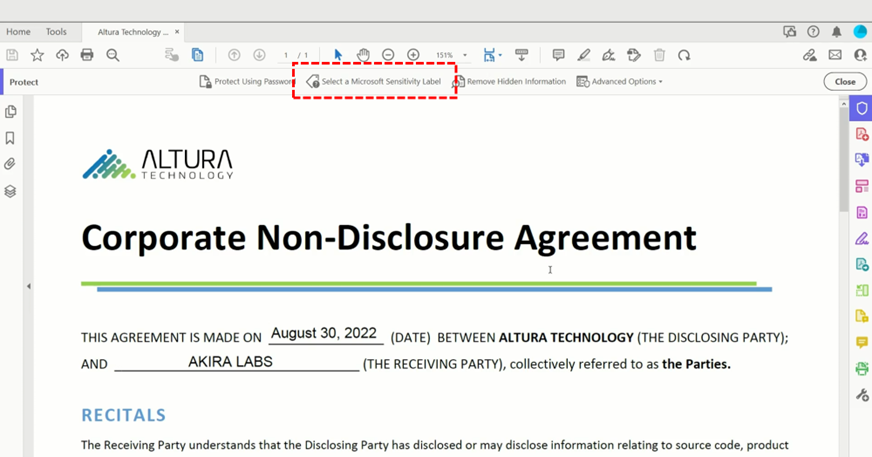
Unlike your Microsoft Office suite (Word, Excel, PowerPoint, Outlook), Adobe Acrobat doesn’t play nicely with Sensitivity labels. The “solution”? Mucking about in the Windows registry. Yes, you read that right – registry editing. Adobe’s own support documentation lists down the exact steps to do this. Source (Adobe MPIP Support: https://helpx.adobe.com/enterprise/kb/mpip-support-acrobat.html)

Sure, tweaking the registry is not difficult to do. But imagine rolling this out across thousands of machines in your enterprise. Any experienced IT admin who’s attempted large-scale registry changes will tell you that it’s not fun.

There is a way to do this via Intune to simplify things. You can read it here from Simon Skotheimsik’s blog: https://skotheimsvik.no/how-to-use-intune-to-enable-sensitivity-labels-on-pdf-files

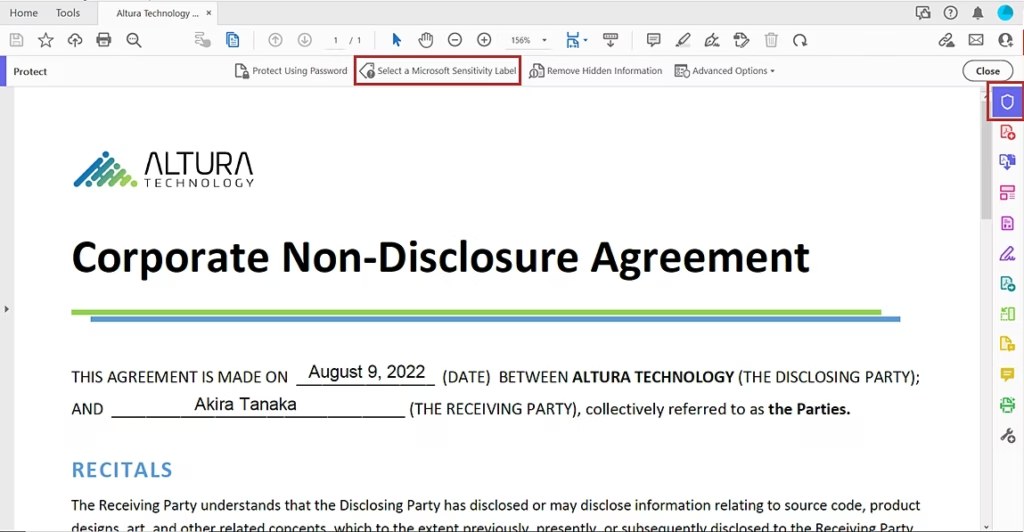
Image from: Adobe

This option is great if you need to add the same Header, Footer or Watermark that you use in your Word, Excel and PowerPoint files to your PDF.

Approach 3: Label data using the Microsoft Purview Information Protection client

This client must be installed first to your Windows devices before it would work, you can get it here: https://www.microsoft.com/en-gb/download/details.aspx?id=53018

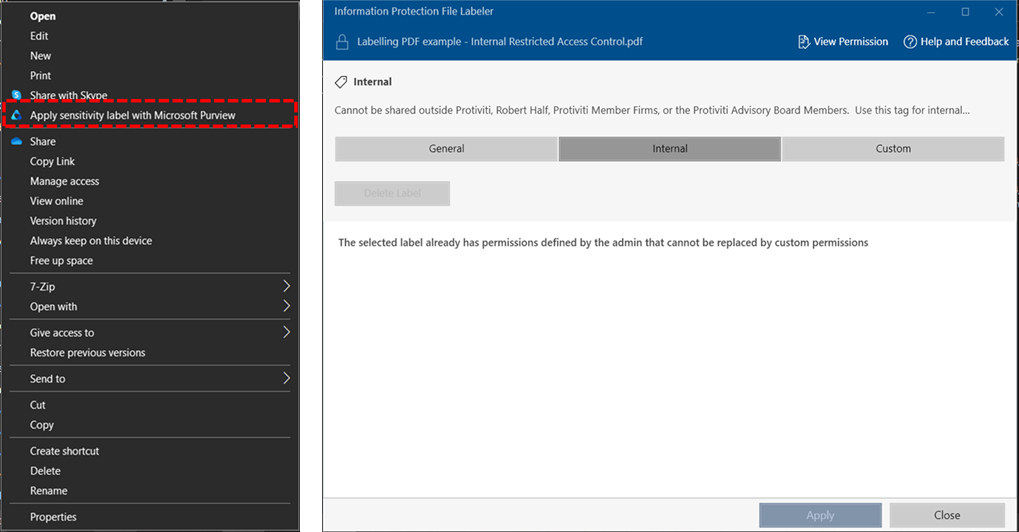
Once installed, you now have a tool that can label PDF files and do so much more. There are some limitation to this that you’ll see below. The client application can be launched by right clicking a file and selecting Apply sensitivity label with Microsoft Purview.

One big benefit of using this client is that you can select multiple files or even an entire folder and mass label them in 1 go. You can use this to MANUALLY label all the files sitting inside a PC or even in a Shared Network Drive.

The limitation.

The limitation of using this tool is that you will not be able label data while a PDF is open, there is no label interface inside of Adobe Acrobat, also with this tool cannot apply headers, footers or watermarks. This is by design as the client is an application/ process that applies labels outside of office files. Read it here: https://learn.microsoft.com/en-us/purview/sensitivity-labels-office-apps#when-office-apps-apply-content-marking-and-encryption

Opening Encrypted PDF in Word?

This was a question to me by a client: What happens when a user tries to open a PDF in Word?

Most of us by now know that you can open and edit a PDF in Word (if you don’t know how, please check this: https://support.microsoft.com/en-us/office/opening-pdfs-in-word-1d1d2acc-afa0-46ef-891d-b76bcd83d9c8

The short answer is that your data is still protected. Here’s what happens when I tried to open an encrypted PDF file in Word.

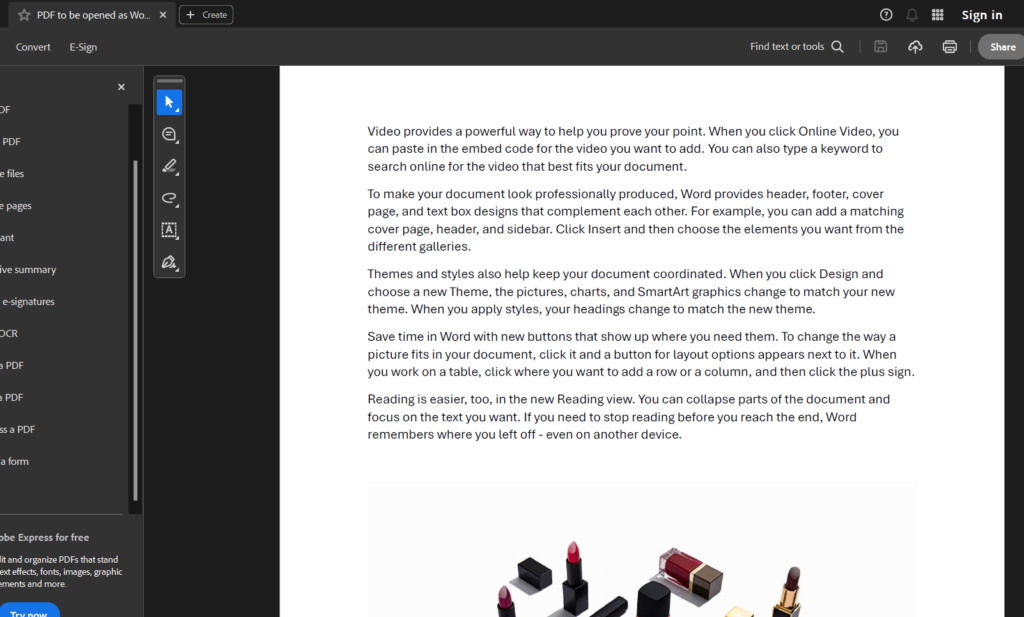
Here’s the original PDF file that I have encrypted.

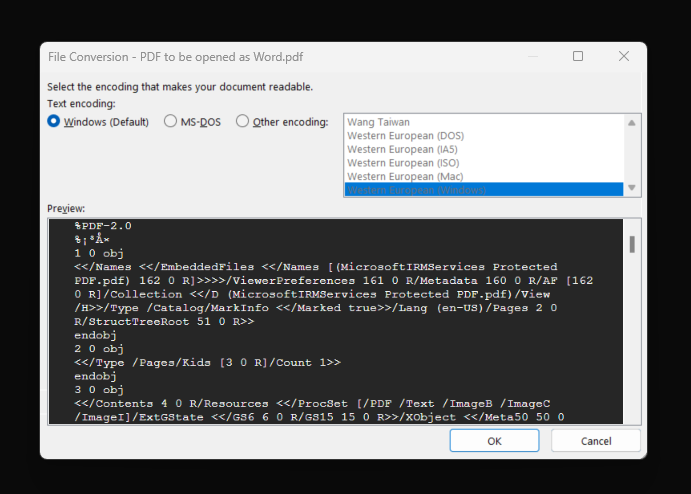
After using Word to open the PDF. A pop-up prompt asked me select how I want the file to be opened.

From the Preview window, I can already see that the data is encrypted by Microsoft IRM Services. This gives me confidence that the data is protected.

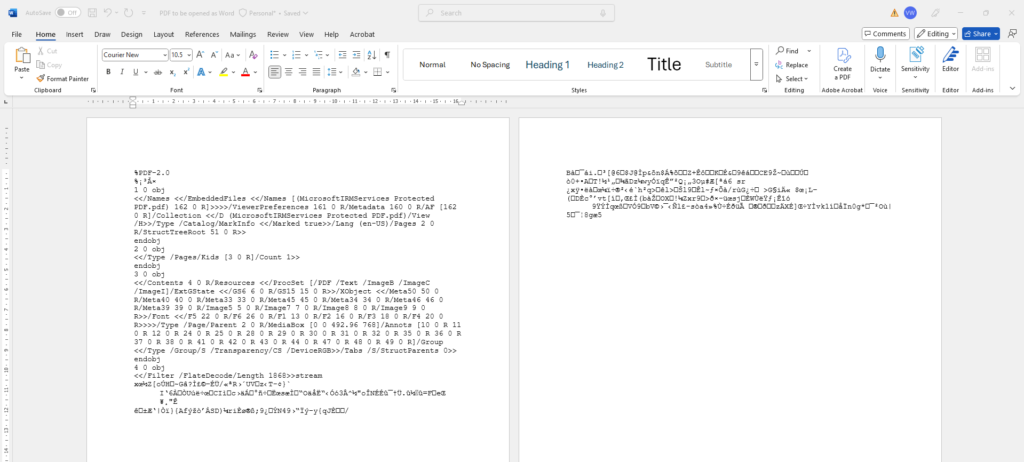
Then upon opening the file, all I can see are the hashed data. The text + image in the original file is no longer readable.

Deployment strategy

Now that you know how labels works for PDFs. Let’s talk about Deployment.

Begin with Approach 1 because it leverages familiar tools like Microsoft Word and allows you to secure sensitive PDFs right from the document creation stage. This straightforward step minimises the learning curve and reduces the likelihood of errors, enabling your team to adopt essential security measures immediately.

Once the basics are in place, invest in user education to ensure proper application and management of sensitivity labels. Training reinforces security compliance and builds a strong foundation, empowering your staff to understand and uphold data protection practices across the organisation.

After establishing confidence in Approach 1, transition to the Microsoft Purview Information Protection client (Approach 3) to enable scalable, mass labelling across devices and shared drives. This phased progression not only improves operational efficiency and consistency but also sets the stage for introducing more advanced options like registry adjustments (Approach 2) when additional formatting or watermark requirements arise.

References:

All Adobe related guides: