Recommended solutions when Encryption breaks your workflows

If you’ve read my previous blog post on what breaks when you turn on Encryption with sensitivity labels (read it here: When Encryption breaks reality)

Now we will look into how we can remediate it with these practical solutions that works in the real world.

1. Establish clear data storage policies

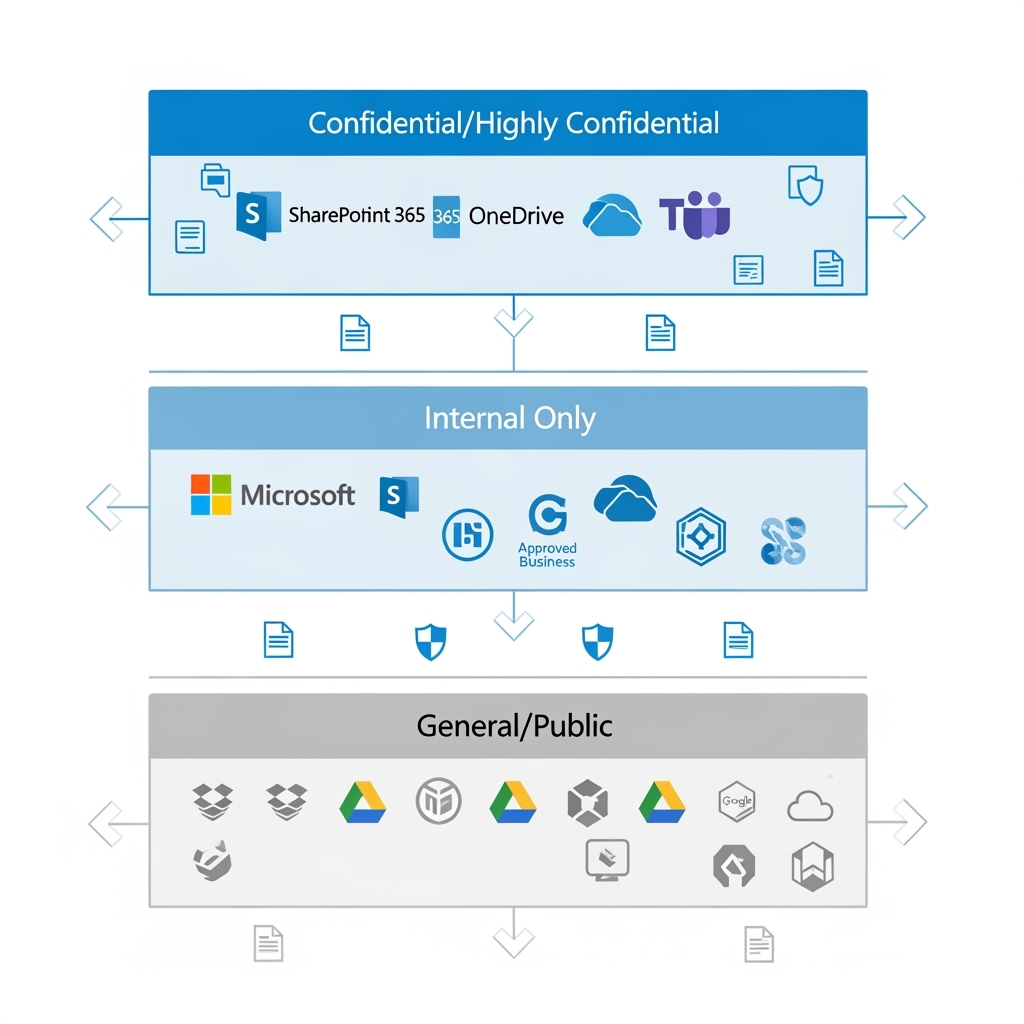
The recommended solution: Codify in your Information Security Standards that confidential or sensitive data must NOT be stored in third-party systems.

Why this works: By keeping sensitive data within Microsoft 365’s ecosystem, you maintain full control over encryption, access permissions, and audit trails. Microsoft 365 provides native integration between all its services—from SharePoint and OneDrive to Teams and Outlook—ensuring encrypted documents work seamlessly across your organisation’s approved platforms.

Implementation tip: Create a simple classification guide that shows users exactly which data types belong where. Make it clear that “Confidential” and above stays in Microsoft 365, while “General” business information can live elsewhere.

2. Educate users on platform selection

The recommended solution: Train your end-users on what platforms to use, when to use them, and how to properly share confidential data.

Why this works: Most encryption-related issues stem from users not understanding the boundaries of their tools. When people know that encrypted documents won’t work in Dropbox, they’ll choose SharePoint instead.

Implementation tip: Create simple decision trees: “Need to share confidential data externally? Use secure email with expiry dates. Need to collaborate on sensitive documents? Use SharePoint with guest access controls.”

3. Configure service accounts for automation

The recommended solution: For AI and RPA systems (especially in-house built ones), add the named user accounts that run these systems to your encryption policies as approved users.

Why this works: Many automation systems use dedicated service accounts to access files. By explicitly granting these accounts decryption rights, your automated workflows continue functioning while maintaining security controls.

Implementation tip: Create a dedicated security group for automation accounts and include this group in your sensitivity label encryption settings. This makes it easier to manage permissions as you add more automated systems.

4. Implement data minimisation for BI tools

The recommended solution: Third-party BI tools should not access confidential data directly. Instead, use data minimisation, anonymisation, and masking techniques.

What this means: Data minimisation involves only sharing the minimum data necessary for analysis. Data anonymisation removes personally identifiable information, while data masking replaces sensitive values with realistic but fake data that maintains statistical properties.

Why it’s important: This approach protects sensitive information while still enabling business intelligence. Your sales dashboard can show trends and patterns without exposing individual customer details or confidential pricing information.

Implementation tip: Create sanitised data exports specifically for BI tools, removing or masking sensitive fields before the data leaves your secure environment.

5. Standardise PDF readers organisation-wide

The recommended solution: Ensure all devices run the same, supported version of PDF readers using Intune, Group Policy, or IT deployment checklists.

Why this works: Consistency eliminates the “it works on my machine” problem. When everyone uses Adobe Reader/Acrobat version 22 or later, encrypted PDFs open reliably across your organisation.

Implementation tip: Include PDF reader version checks in your device compliance policies. Set up automatic updates where possible, and create a simple verification script for IT teams to run during device setup.

6. Map your external ecosystem

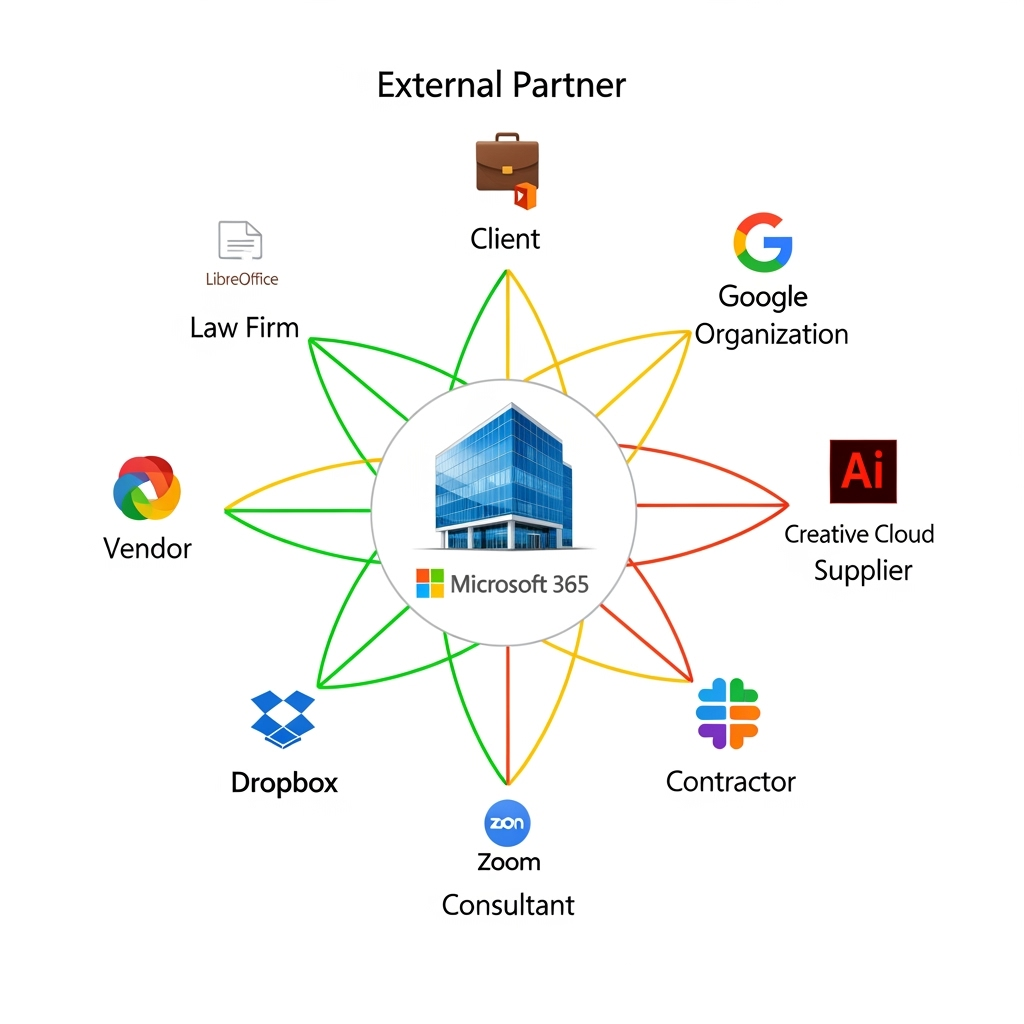
The recommended solution:: Understand what software your vendors, suppliers, and customers are using before sharing encrypted documents.

Why this works: Knowing that your vendor/ partner/ supplier/ law firm uses LibreOffice or your client prefers Google Docs helps you choose the right sharing method upfront, avoiding embarrassing “I can’t open your file” conversations.

Best practice examples:

  • Maintain a simple spreadsheet of key partners and their preferred platforms
  • Ask about software compatibility during vendor onboarding
  • Include system requirements in your standard contract templates
  • Create partner-specific sharing guidelines for your teams

7. Identify critical platform dependencies

The recommended solution: In connection to item 6, note which critical partners use non-Microsoft platforms that could be impacted by encrypted data sharing, then ensure users know the right channels for sensitive data exchange.

Why this works: This builds on your data storage policies (solution 1) and user education (solution 2) by creating specific guidance for high-stakes relationships.

Implementation tip: For critical partners who can’t handle encrypted files, establish secure alternatives like password-protected SharePoint links with expiry dates, or use secure email gateways that work across platforms.


Two additional best practices you shouldn’t miss

8. Create encryption exception processes

The recommended solution: Establish a formal process for temporarily removing encryption when legitimate business needs arise.

Why you need this: Sometimes encrypted documents genuinely need to be shared with systems that can’t handle them. Rather than having users work around security controls, create an approved exception process with proper approvals, time limits, and audit trails.

9. Implement regular compatibility testing

The recommended solution: Schedule quarterly tests of your encryption policies against your actual business workflows.

Why this matters: Software updates, new vendor relationships, and changing business processes can break previously working encryption setups. Regular testing catches these issues before they impact critical business operations.

Implementation tip: Create a simple test matrix covering your most common document types, sharing scenarios, and external platforms. Run through this checklist each quarter and after major system updates.


Remember: The goal isn’t perfect security—it’s effective security that people can actually use.

When Encryption Meets Reality: What Actually Breaks When You Deploy Sensitivity Labels

Microsoft Purview’s sensitivity labels are brilliant for protecting your organisation’s data—until they’re not. While the encryption capabilities of labels like “Highly Confidential” and “Internal Only” provide robust security, they can also create unexpected roadblocks that’ll have your users reaching for the IT helpdesk.

I’ve previously written several blog post on the subject that you can read

Adding to what I’ve already mentioned above, let’s explore the seven other common issues when encryption through sensitivity labels meets the real world.

1. Third-Party Cloud Storage Platforms

What breaks: Dropbox, Adobe Creative Cloud, DocuSign, and similar platforms

Why it happens: Purview treats these as external environments and blocks access to encrypted content. Your beautifully protected document becomes a digital paperweight the moment someone tries to edit it outside the Microsoft 365 ecosystem.

2. AI and RPA Systems

What breaks: Third-party artificial intelligence tools and robotic process automation systems

Why it happens: These systems need to read and process your data, but encryption renders the content unreadable to external AI engines.

The impact: Your automated processing stops working, chatbots can’t access knowledge base documents, and data extraction workflows grind to a halt.

3. Business Intelligence Dashboards

What breaks: Third-party analytics platforms that pull data from encrypted Excel files.

Why it happens: BI tools can’t decrypt and read the underlying data in your spreadsheets, leaving your dashboards empty or displaying errors.

The impact: Executive reports fail to update, sales dashboards show no data, and business intelligence grinds to a halts

4. Legacy Adobe PDF Readers

What breaks: Adobe versions older than Adobe Reader/Acrobat 22

Why it happens: Older Adobe versions lack the necessary components to handle Purview’s encryption standards.

The impact: Users with older software installations can’t open encrypted PDFs, creating accessibility issues across different departments or external partners.

As per Microsoft the version that supports labelling is version 22.003.20258

Adobe’s official documentation is more update and it shows version 23.003.20201.1ec7624

In my personal experience, I’ve seen devices that has Acrobat 21, 19 and 15 not even be able to open up encrypted PDF files.

5. Online PDF Viewers

What breaks: Browser-based PDF viewers (with the exception of Microsoft Edge)  and 3rd party PDF reader apps.

Why it happens: These lightweight PDF viewers (ex. Nitro PDF and PDFgear) don’t have the decryption capabilities required for Purview-protected documents.

The impact: Document previews fail, web-based workflows break. Users using 3rd party reader apps either is not able to open the files or gets an error message when they open an encrypted PDF.

6. Open Source Office Suites

What breaks: LibreOffice, OpenOffice, and similar free alternatives

Why it happens: These applications lack the proprietary decryption libraries needed to handle Microsoft’s encryption.

The impact: Your vendors, remote branch offices or sub-member firms who runs their own IT systems who are using these free office software suddenly can’t access company documents, creating a two-tier system of document access.

I’ve checked the LibreOffice documentation and could not find any mention of support for RMS.

7. Non-Microsoft Productivity Platforms

What breaks: Google Workspace (Docs, Sheets, Slides) and Apple iWork (Pages, Numbers, Keynote)

Why it happens: Competing platforms don’t support Microsoft’s encryption standards—hardly surprising, but often overlooked during planning and deployment.

You can read more about that here:

Does sensitivity label applied docs can be opened in google docs if I add my google account while applying the label?

Also, Google Workspace has a competing data classification scheme: Enable or disable a classification label which is why I think it not likely that Google will make this cross-platform work.

The impact: Cross-platform collaboration becomes impossible, and BYOD policies clash with security requirements.


If you encounter any of these, read part 2 with my recommended actions/ workarounds.

When Purview SIT NAMES gives me headaches

There are now 326 built-in Purview SIT (as of 07-June-2025). The new addition great but Microsoft needs to do a better job in managing how SIT’s documented and communicated to it’s users. Here’s my quick rant on this matter:

Rant 1: The Update list that is stuck in February 2024

    The official Microsoft page (Sensitive information type entity definitions) hasn’t been updated since February 7, 2024. Seriously? 1 year and five months and counting.

    Why it’s frustrating: We’re stuck creating custom SIT because the docs are MIA. (Although, I did win a project out of creating custom SIT – but still!)

    Rant #2: Inconsistencies in SIT naming

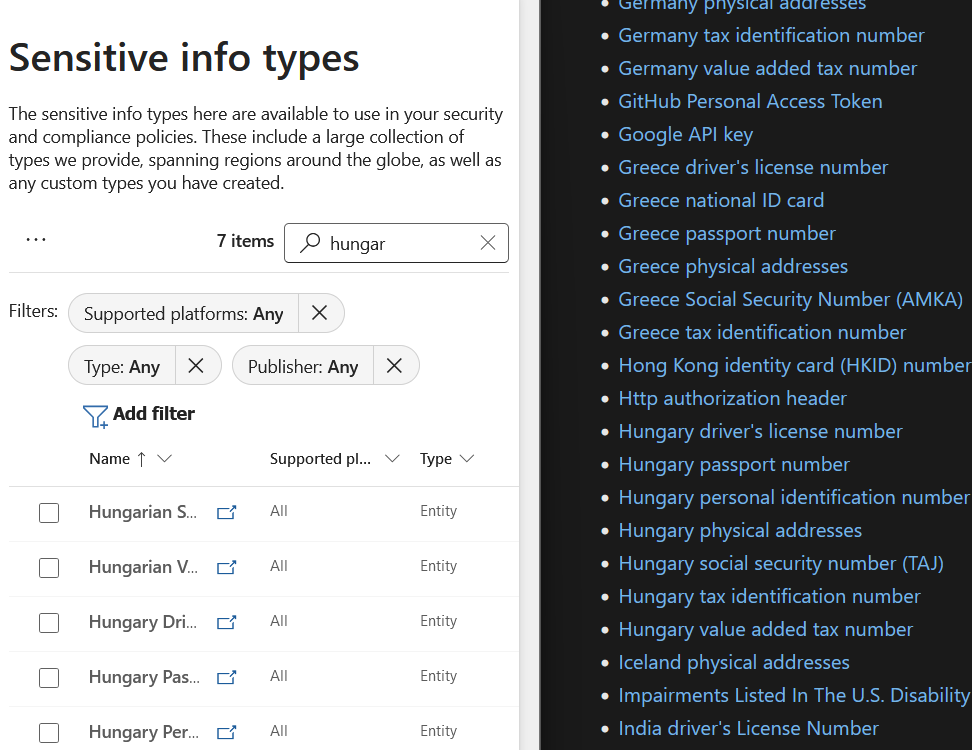
    If you compare the SIT names in the In the official documentation against the SIT names that you get in the Purview portal, the names that are used shows up are different.

    You can see in this image below that in the Purview Portal (left), There are items such as Hungarian Social Security number versus Hungary Social security number.

    Some of the names have an added n (Australian instead of Australia), some have the words Identification spelled out instead of ID. There’s a long list of inconsistencies with the naming.

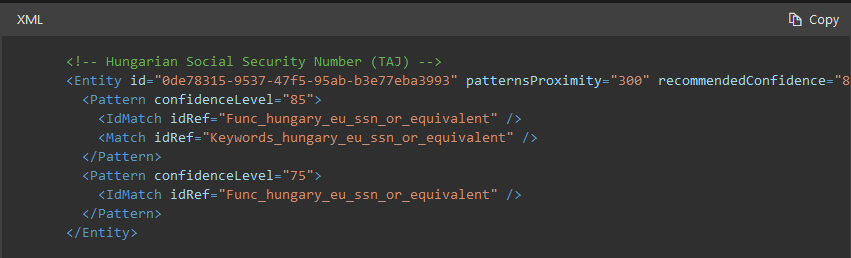
    Admittedly, from within their XML data, the names are correct. So now I ask the product team, why have the names in the documentation title be different then?

    Rant 3: No announcements when new Built-it SITs are out

    There are no announcement to the Purview community when new built-in SITs comes out. I had to manually check every now and then by exporting a list of SIT and comparing it with previous data. Good thing I keep a track of what comes out (read my latest post on the matter: https://www.linkedin.com/pulse/12-new-sits-available-microsoft-purview-victor-wingsing-uzzze/)


    Advise to Purview admins

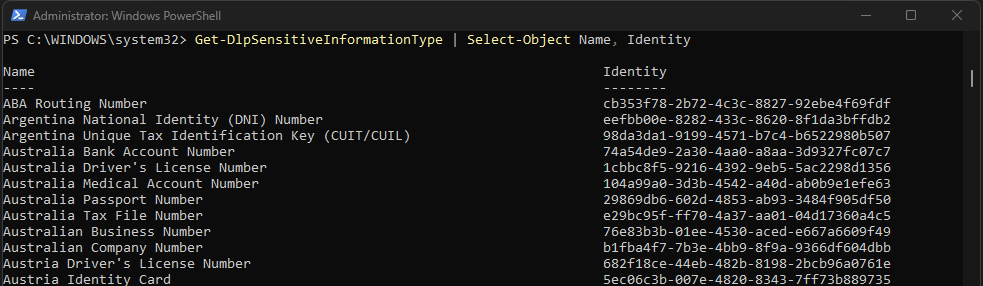
    Use the Immutable IDs when deploying SITs. Use the following command to export all the ID in a csv file

    Get-DlpSensitiveInformationType | Select-Object Name, Identity | Export-Csv -Path "SIT_Names_and_IDs.csv" -NoTypeInformation
    
    Change the path name to a location where you want the file to be exported.

    Using the Immutable Identity (ID) is better when deploying your Purview policies as names could easily change but these ID (as the name implies) are immutable. This makes your deployment scripts future-proof.

    Using eReaders with Microsoft Purview Information Protection: A “Remarkable” Case Study

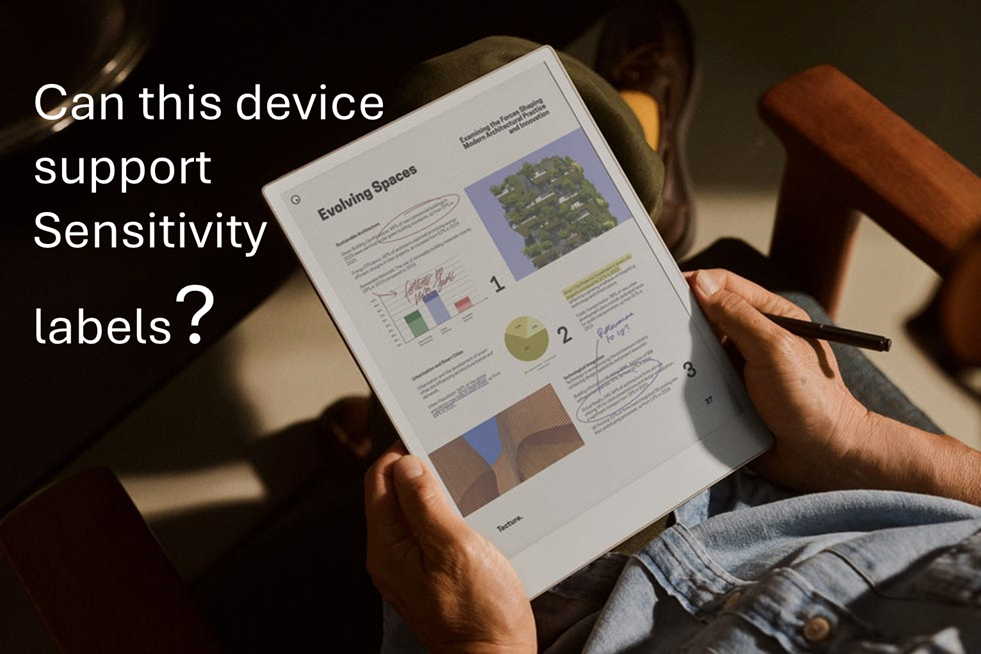
    I’ve already decided what I’ll buy first when I win the lottery and it’s going to be the Remarkable Paper Pro.

    I saw a C-level executive from a client using this device in a meeting and I was immediately impressed by its design. The form factor, the way it writes like paper and the feature where you can just write on-top of a PDF files is just so cool.

    This same client later asked whether implementing sensitivity labelling for PDF files would impact their users as they have many of whom use this device for reading and annotating documents whilst travelling (especially VIPs). So…I decided to investigate.

    Remarkable Paper Pro: Technical Overview

    • Operating System: Codex (custom Linux-based OS)
    • Supported formats: Limited to PDF and ePub
    • Web capabilities: No built-in browser

    File Management Options

    • Email: Direct file sharing via email.
    • Cable transfer: USB connection for importing/exporting
    • Cloud integration: Syncs with personal Google Drive, Dropbox and OneDrive
    • Remarkable custom app: The device can import files through my.remarkable.com

    Device limitation (for Device Management or Data Security)

    • The Operating system (a Linux OS) cannot be onboarded to Microsoft Device Management or Intune
    • The Operating system does not have browser to access the Microsoft authentication portal
    • Users accessing corporate data are limited to do it in 3 general ways (sending it to the device via email, via usb cable, or via syncing the files from their Personal online storage aka Personal Dropbox, OneDrive, Google Drive)
    • Though reMarkable tablet can open, view, and annotate password-protected PDFs. However, this feature is limited to basic password protection and does not extend to Microsoft Purview’s advanced encryption methods, such as Rights Management Services (RMS) or Microsoft Information Protection (MIP).

    Users will encounter issues only when using sensitivity labels with encryption to PDF files. This limitation exists because the Remarkable devices cannot process Microsoft Purview’s advanced encryption methods, lacking both the necessary authentication capabilities and OS support to decrypt protected content.

    The device also has no browser to authenticate with Microsoft services and its custom Linux-based OS (Codex) cannot be integrated with Microsoft’s security ecosystem. This makes it not possible to work on encrypted PDFs.

    However, if PDF files are merely labelled without encryption applied (visual marking only), users will experience no impact whatsoever. These files remain fully accessible and maintain all annotation capabilities, as the labelling exists purely as metadata without affecting the file’s core accessibility.

    Potential Solutions

    Simple approach: Instruct executives to use sensitivity labels without encryption for PDF files they need to access on their Remarkable devices. Implement DLP monitoring to track PDFs sent to personal email addresses, providing security oversight without disrupting workflow.

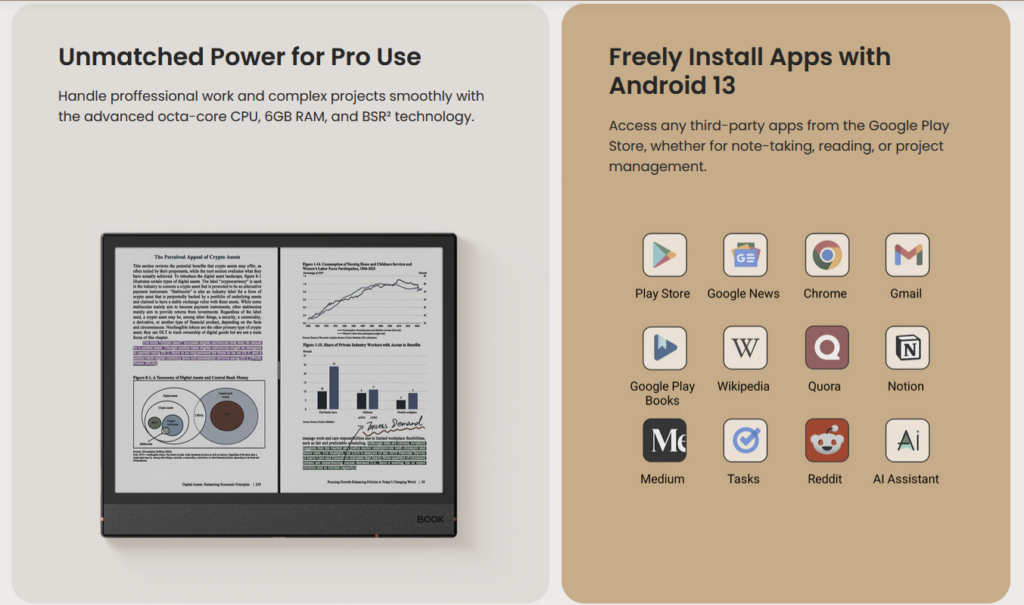
    Moderate approach (but Costly): Issue corporate Onyx Boox eReaders as an alternative. Onyx Boox is a direct competitor of Remarkable but the key difference is that it runs on Android OS.

    The big benefit: these Android-based (Android 13 OS) devices support Microsoft authentication and can be properly integrated with MDM solutions, allowing full compatibility with encrypted documents.

    It also cost less than the Remarkable Paper Pro, but buying an extra corporate device (even at $499 USD) just for reading PDF files and note taking might not be taken well by your CFO.

    Complex approach: Create a special sensitivity label variant without encryption specifically for executive use cases involving eReaders. This label would maintain visual markings and tracking capabilities while ensuring accessibility on the Remarkable device.

    Supporting your current Remarkable device users today.

    If supporting Remarkable devices for VIP users is necessary, focus on monitoring data flow rather than blocking device use.

    Set up DLP policies that track document transfers to personal emails and cloud services used with Remarkable. Include:

    • Alerts when sensitive documents are transferred
    • Required business justification for transfers
    • Time limits on sensitive document access
    • Targeted security training for Remarkable users
    • Regular reviews of transferred documents
    • Clear audit logs of document movement (once reviews are done)

    This approach balances users device preferences with security needs. Monitoring works better than banning devices that senior staff prefer to use.


    Reference:

    Deep dive in PDF labeling and data protection

    Let’s cut to the chase – PDFs are everywhere in your organisation, and they’re housing your sensitive data. I’m talking about those finalised e-signed contracts, bank statements, and countless other critical documents. While we’re all busy protecting our Office files with fancy security measures, PDFs often slip through the cracks. But here’s the thing – they need the same level of classification and protection as your typical .docx or .xlsx files.

    Here’s the different ways you could label PDF files and simple to follow deployment strategy to enable PDF data classification to your data.

    Labeling PDFs: Three Approaches

    1. Label data natively in Microsoft Office then save it as PDF
    2. Label data using Adobe Acrobat
    3. Label data using the Microsoft Purview In

    Read all the way to the end to see what would happen if you use the “Open in PDF Word” function to an encrypted PDF file.

    Approach 1: Label natively using Microsoft Office then save it as a PDF

    Approach 1: Label Then Save as PDF
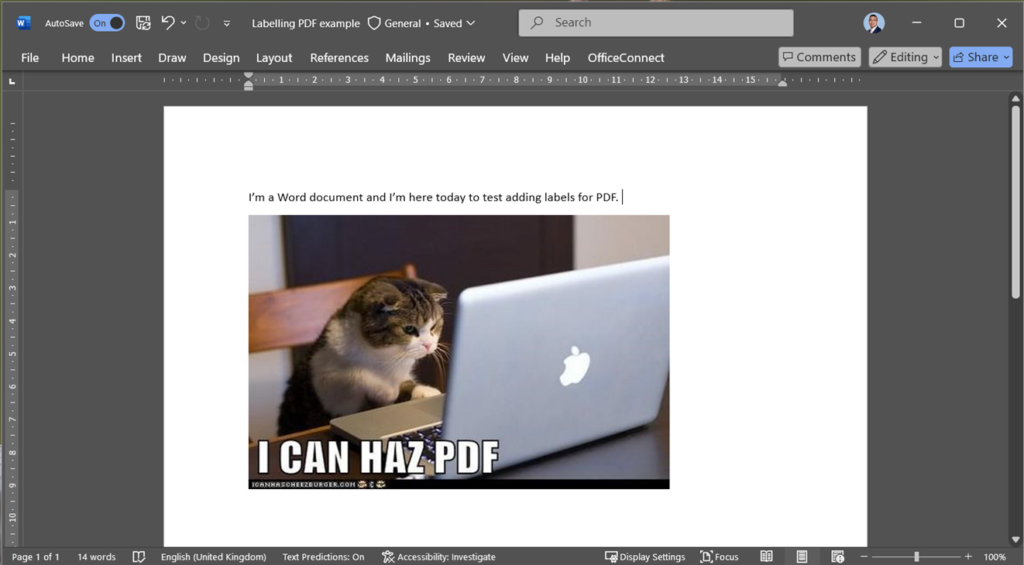
    This approach is something you can do now. This method involves applying a sensitivity label directly to an Office document in an application like Microsoft Word, and then saving it as a PDF. Although the label transfers to the PDF, note that if your label incorporates encryption, you must disable the PDF/A option when saving. The resulting PDF will display protection via Purview Information Protection, and its custom properties will indicate the applied label.

    Created a New word document
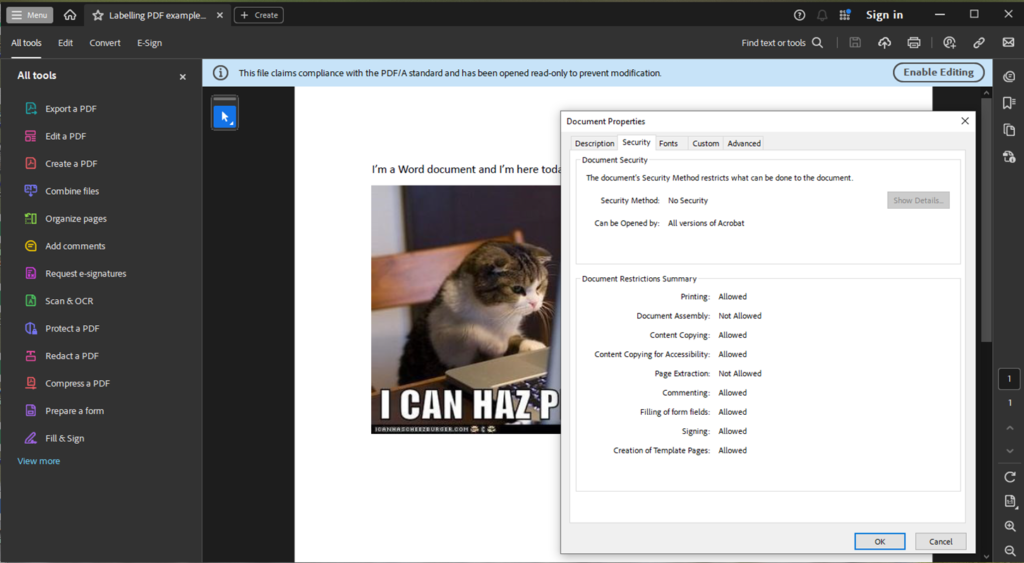
    Saved as a PDF. The document security shows no security as the label that I used is just a plain label without any encryption.
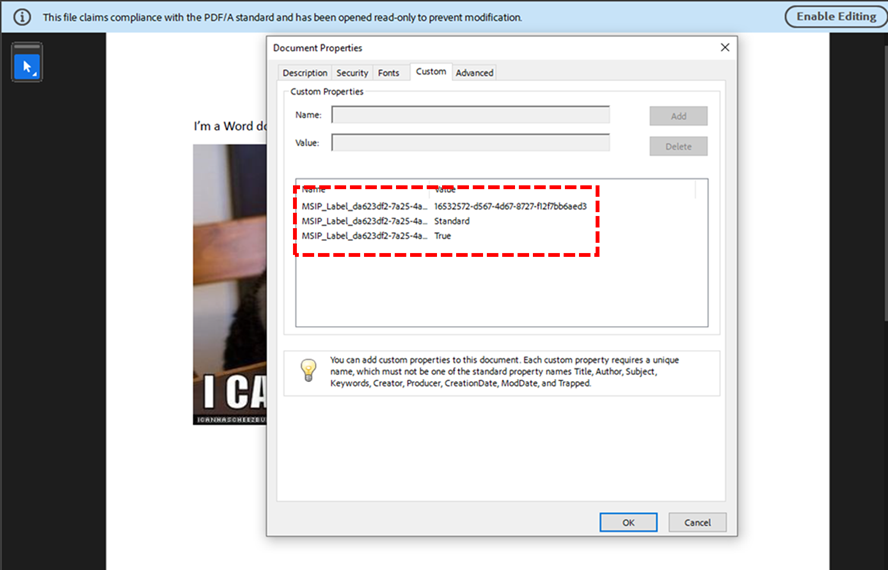
    Custom values shows the label that I used.

    TAKE NOTE that if your label has ENCRYPTION turned on, then you need to unselect the PDF/A option as you save it.

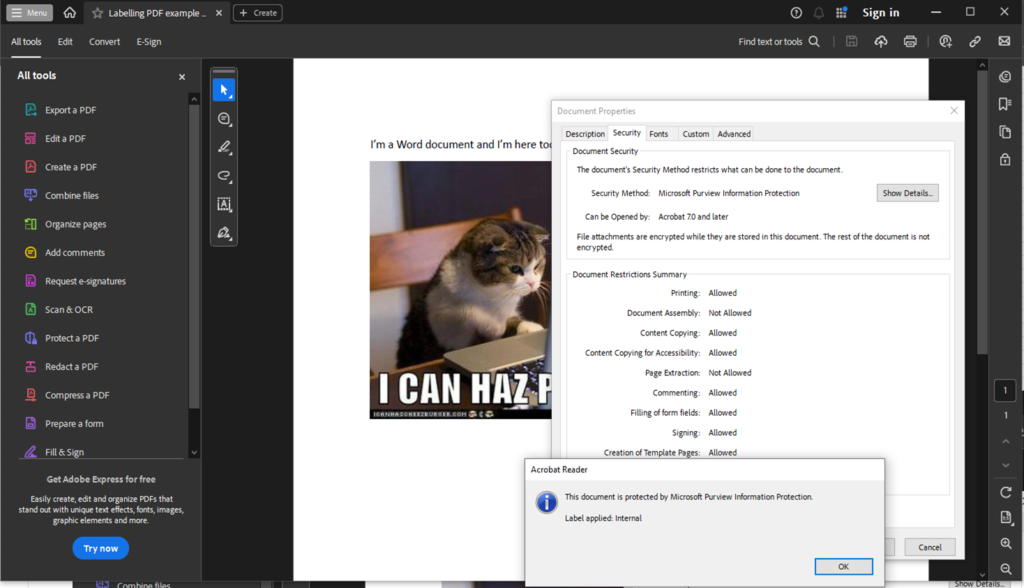
    The security tab displays that it’s protected by Purview Information Protection.
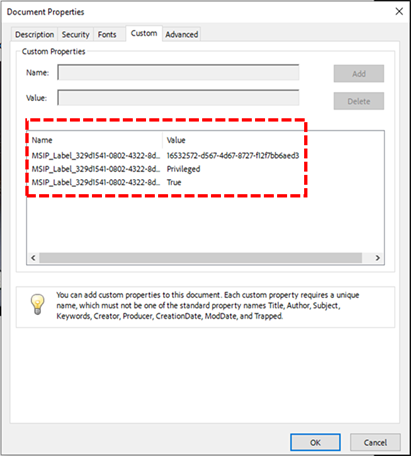
    The custom properties shows the Privileged/ Protected / Encrypted label used

    Approach 2: Label data using Adobe Acrobat PDF Reader

    Here’s where it gets interesting (and a bit challenging). Most of us view these PDFs through web browsers or PDF readers, with Adobe being the undisputed king of the PDF world. In fact, Adobe’s so dominant that in most organisations I’ve worked with, it’s practically become the default way to handle PDFs – much like how we all say “Google it” instead of “search for it”.

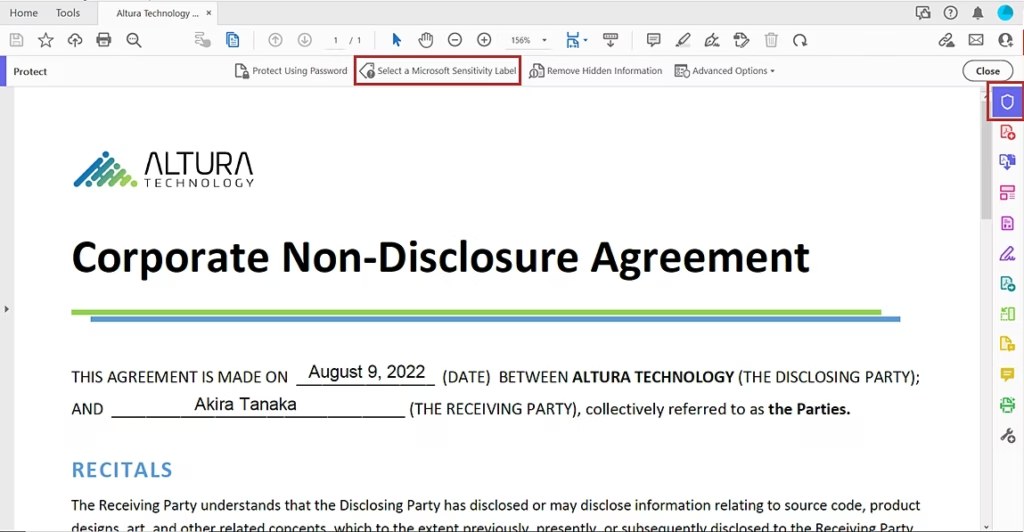
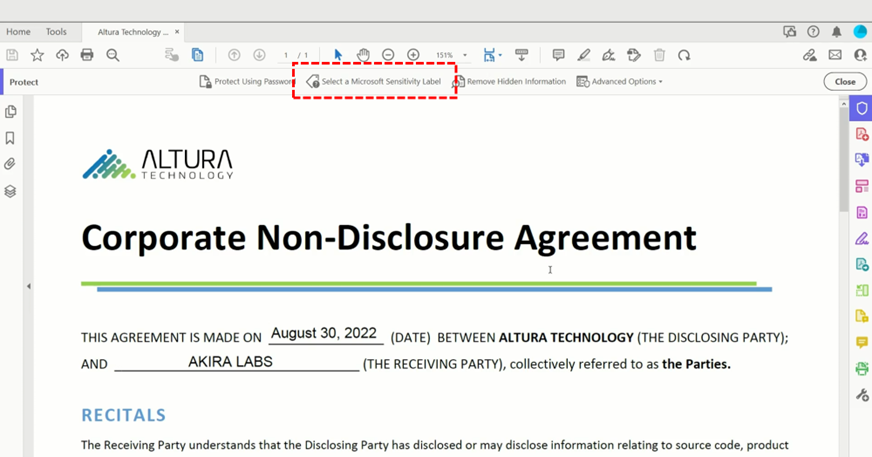
    Unlike your Microsoft Office suite (Word, Excel, PowerPoint, Outlook), Adobe Acrobat doesn’t play nicely with Sensitivity labels. The “solution”? Mucking about in the Windows registry. Yes, you read that right – registry editing. Adobe’s own support documentation lists down the exact steps to do this. Source (Adobe MPIP Support: https://helpx.adobe.com/enterprise/kb/mpip-support-acrobat.html)

    Sure, tweaking the registry is not difficult to do. But imagine rolling this out across thousands of machines in your enterprise. Any experienced IT admin who’s attempted large-scale registry changes will tell you that it’s not fun.

    There is a way to do this via Intune to simplify things. You can read it here from Simon Skotheimsik’s blog: https://skotheimsvik.no/how-to-use-intune-to-enable-sensitivity-labels-on-pdf-files

    Image from: Adobe

    This option is great if you need to add the same Header, Footer or Watermark that you use in your Word, Excel and PowerPoint files to your PDF.

    Approach 3: Label data using the Microsoft Purview Information Protection client

    This client must be installed first to your Windows devices before it would work, you can get it here: https://www.microsoft.com/en-gb/download/details.aspx?id=53018

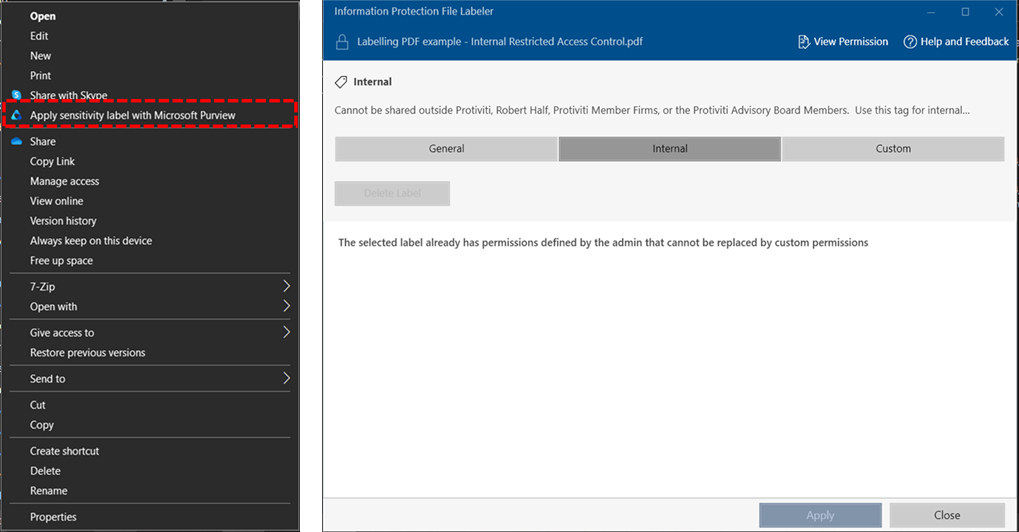
    Once installed, you now have a tool that can label PDF files and do so much more. There are some limitation to this that you’ll see below. The client application can be launched by right clicking a file and selecting Apply sensitivity label with Microsoft Purview.

    One big benefit of using this client is that you can select multiple files or even an entire folder and mass label them in 1 go. You can use this to MANUALLY label all the files sitting inside a PC or even in a Shared Network Drive.

    The limitation.

    The limitation of using this tool is that you will not be able label data while a PDF is open, there is no label interface inside of Adobe Acrobat, also with this tool cannot apply headers, footers or watermarks. This is by design as the client is an application/ process that applies labels outside of office files. Read it here: https://learn.microsoft.com/en-us/purview/sensitivity-labels-office-apps#when-office-apps-apply-content-marking-and-encryption

    Opening Encrypted PDF in Word?

    This was a question to me by a client: What happens when a user tries to open a PDF in Word?

    Most of us by now know that you can open and edit a PDF in Word (if you don’t know how, please check this: https://support.microsoft.com/en-us/office/opening-pdfs-in-word-1d1d2acc-afa0-46ef-891d-b76bcd83d9c8

    The short answer is that your data is still protected. Here’s what happens when I tried to open an encrypted PDF file in Word.

    Here’s the original PDF file that I have encrypted.

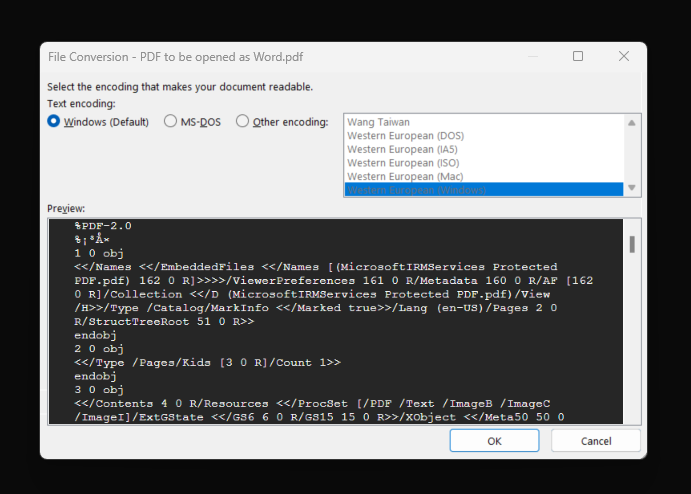
    After using Word to open the PDF. A pop-up prompt asked me select how I want the file to be opened.

    From the Preview window, I can already see that the data is encrypted by Microsoft IRM Services. This gives me confidence that the data is protected.

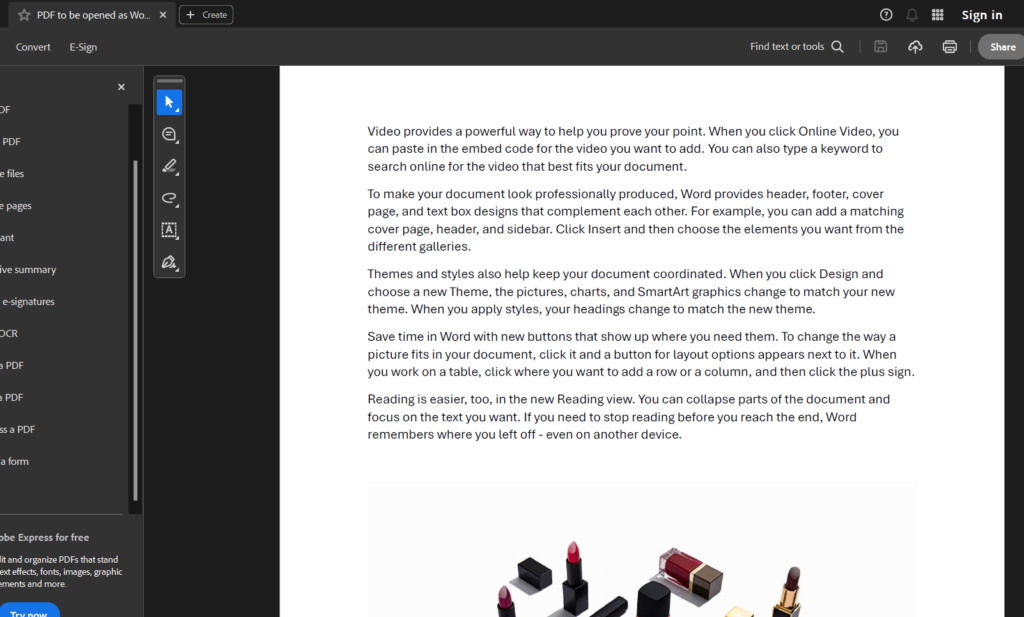
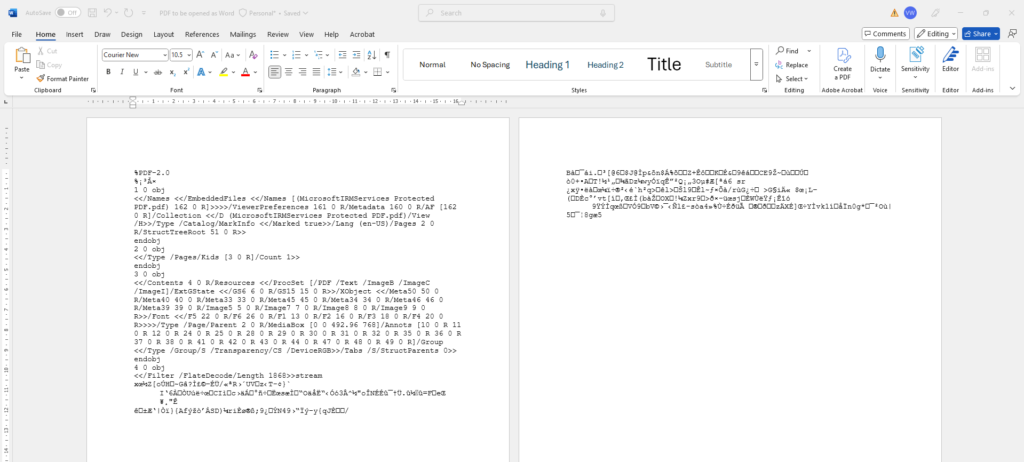
    Then upon opening the file, all I can see are the hashed data. The text + image in the original file is no longer readable.

    Deployment strategy

    Now that you know how labels works for PDFs. Let’s talk about Deployment.

    Begin with Approach 1 because it leverages familiar tools like Microsoft Word and allows you to secure sensitive PDFs right from the document creation stage. This straightforward step minimises the learning curve and reduces the likelihood of errors, enabling your team to adopt essential security measures immediately.

    Once the basics are in place, invest in user education to ensure proper application and management of sensitivity labels. Training reinforces security compliance and builds a strong foundation, empowering your staff to understand and uphold data protection practices across the organisation.

    After establishing confidence in Approach 1, transition to the Microsoft Purview Information Protection client (Approach 3) to enable scalable, mass labelling across devices and shared drives. This phased progression not only improves operational efficiency and consistency but also sets the stage for introducing more advanced options like registry adjustments (Approach 2) when additional formatting or watermark requirements arise.

    References:

    All Adobe related guides:

    In the center of it all.

    Among all Microsoft Purview security solutions, there’s one that you absolutely must get right. If you don’t, your entire data security strategy could fall apart, no matter what other security tools you’re using.

    This key solution brings together three basic but crucial tasks: finding your sensitive data, labelling it correctly, and keeping it safe. This solution is Microsoft Purview Information Protection (MIP), and it’s at the heart of how you protect your company’s data.

    Why is MIP so critical?

    Think of the Microsoft Purview’s Data Classification service as the system that helps all other security tools know what to do. Here’s how it works with different Purview tools:

    Purview Data Loss Prevention (DLP):

    • Works like a security guard that reads the labels
    • If it sees a file marked ‘Secret’, it knows exactly what protection rules to follow
    • For example: “This is confidential data, so don’t let it be shared outside the company”

    Endpoint DLP (Devices) and Microsoft Defender for Cloud Apps:

    • These tools check the labels whether you’re working on your laptop or in cloud apps like Workday, Salesforce, etc.
    • They constantly ask “What’s this file’s label?” before allowing any action
    • Then they make sure the right safety measures are in place

    Microsoft Purview Insider Risk Management:

    • This one’s particularly clever about using the labels
    • It watches for unusual behaviour with sensitive data
    • For example: If someone suddenly downloads 100 files marked ‘Highly Confidential’, it raises an alert
    • It can then start extra monitoring or take other protective steps”

    Microsoft Purview Data Governance (Data Map)

    • This service uses MIP to help you map and catalog your structured data.
    • It gives you the ability to apply consistent classification across your data estate. You can have a standardised label across your organisation.
    • For example: “A ‘Confidential’ label means the same thing everywhere, making it easier to manage and protect”

    Third party services using MIP

    Even third party servicse leverages on the MIP data classification services.

    Trellix integrates it’s DLP network appliance with MIP: https://docs.trellix.com/bundle/data-loss-prevention-11.11.x-product-guide/page/UUID-5d61c924-38ac-3cb9-fb84-17596363740f.html

    Crowdstrike leverage Microsoft Purview Information Protection labels (page 5 of 7): https://www.crowdstrike.com/wp-content/uploads/2023/12/A-Modern-Approach-to-Confidently-Stopping-Unauthorized-Data-Exfiltration_WhitePaper.pdf

    zScaler and Egnyte can import MIP labels as part of it’s DLP: https://help.zscaler.com/downloads/zscaler-technology-partners/data/zscaler-and-egnyte-deployment-guide/Zscaler-Egnyte-Deployment-Guide-FINAL.pdf

    Microsoft Purview Information Protection is the foundation that your entire data security and governance strategy builds upon. Without a properly planned and implemented MIP deployment, even the most sophisticated Purview solutions won’t deliver their full value. Think of it as building a house – you need to get the foundation right first.

    As your organisation grows and your data landscape becomes more complex, your MIP strategy needs to evolve too. Regular reviews of your classification labels, updating sensitivity rules, and fine-tuning your protection policies aren’t just good practice – they’re essential for keeping your data secure and compliant.

    Making the case for Optical Content Recognition (OCR) in your Data Protection strategy

    I recently applied for a U.S. visa, and as part of the process, I had to submit my passport, bank records, and a lot of personally identifiable information to the embassy in the form of PDF and JPEG files. This meant that much of my sensitive data is now stored as images. This made me wonder: How are organisations safeguarding data that is image-based rather than text-based?

    Traditional Data Loss Prevention (DLP) strategies, while effective in monitoring text-based data, often fall short when it comes to image-based content. This shortcoming can lead to significant vulnerabilities, as sensitive information is frequently embedded within images (see my example above). Optical Content Recognition ( OCR) emerges as a must-have tool in addressing this gap, enabling organisations to extract and analyze text from images. For Cyber Security teams aiming to enhance their data security posture, integrating OCR into their DLP strategy is not just beneficial—it is a must!

    What are the industry use cases for OCR in DLP?

    • Financial services: Sensitive information such as account numbers, credit card details, and personally identifiable information (PII) is often embedded in scanned documents, receipts, and screenshots
    • Healthcare industry: There are data that are in the form of Medical records and scans, prescriptions and doctor’s notes (assuming that your doctor can write legibly)
    • Retail and Ecommerce: Scanned receipts and invoices and most product returns and refunds that starts in paper get scanned and stored.
    • Manufacturing: Contracts, Blueprints, R&D documents and even internal presentations (most of which gets converted to either an image or a PDF)
    • Government and Public Sector: Scanned copies of passports, drivers licenses and PII data, Incident reports (which again starts on paper and ends up as a image)

    These are just examples of where OCR in DLP can come in to ensure that data is not leaked out.

    OCR in Microsoft Purview

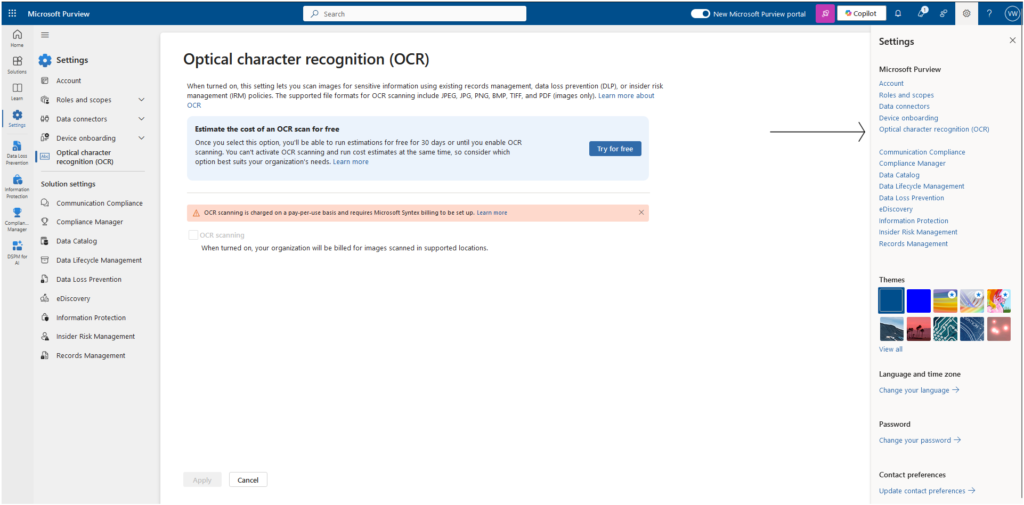
    Microsoft Purview has OCR capability that allows you to be able to identify, and protect data. This allows you to scan images for Sensitive Information but do remember that this is an OPTIONAL feature and must be enabled at a Tenant level. There’s also a bit of a cost to it (more on this later)

    To turn on OCR in your Microsoft Purview you’d need to do the following.

    1. Go to Settings > Select Optical Content Recognition.
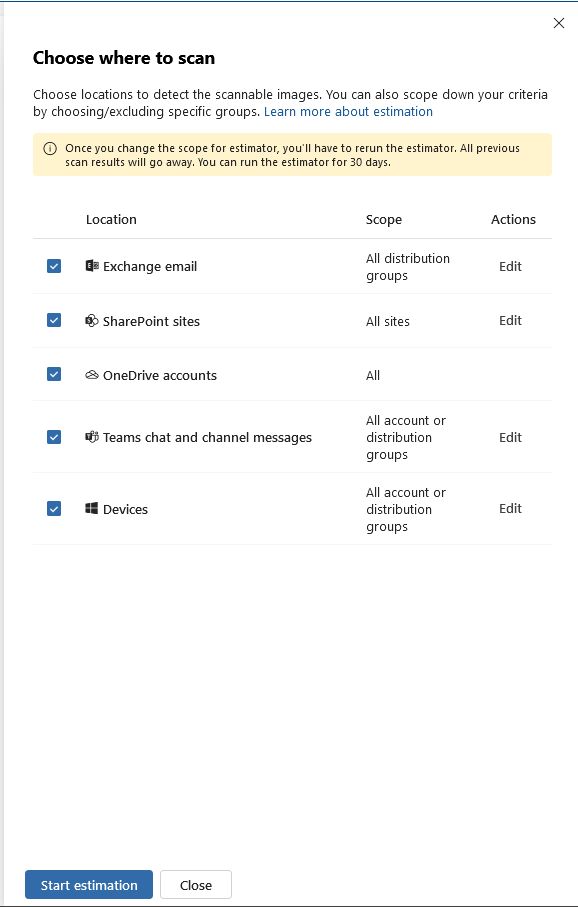
    2. Choose where you want OCR to scan.

    The full Technical instruction can be found here: https://learn.microsoft.com/en-us/purview/ocr-learn-about?tabs=purview#workflow-at-a-glance

    The Cost of OCR

    This capability is powerful as it leverages on the Azure AI to use OCR. As of today, the cost to run $1.00 USD per 1,000 scanned item. The keywords to look out for in the costing is ‘per scanned item’ this is because Microsoft considers each page in a PDF or each individual image page in a set of images as 1 scan. So a PDF that contains 10 pages counts as 10 scans. https://learn.microsoft.com/en-us/purview/ocr-learn-about?tabs=purview#estimate-your-ocr-scanning-charges

    Data Strategy in using OCR for the first time.

    To limit your cost and be more deliberate in running this OCR scan, here’s a helpful strategy so that you use to get started.

    Data Search Using Content Search in Purview: Utilize Microsoft Purview’s Content Search feature to filter by file type, such as JPEG and PNG, to identify potential images containing sensitive information. This targeted approach ensures that all image files are scanned for embedded text.

    Focus on Known Locations: Identify departments or teams that handle sensitive data, such as Finance, Sales, and Marketing, and focus OCR searches on their respective SharePoint sites. This strategy maximizes the efficiency of OCR by concentrating on areas where sensitive information is most likely to reside.

    File Name Analysis: Implement keyword searches for terms that indicate sensitive content, such as “passport” or “ccn” (credit card number), in file names. This proactive approach helps in identifying and flagging files that may contain sensitive information.

    Excluding a specific user (or group) from Sensitivity labels

    I’m excited to share a practical guide I’ve created that walks you through the process of excluding specific users or groups from Microsoft Purview Sensitivity Labels. This guide comes from a real-world scenario where an organization is piloting a new approach to simplify its labeling structure. They wanted to test how reducing the number of labels applied to users would affect workflows and information protection. To support this, I’ve put together detailed instructions on how to effectively manage exclusions in Purview, along with a back-out process to ensure a smooth rollback if needed.

    This PDF guide is packed with step-by-step instructions, screenshots, and expert tips to help you navigate the nuances of label exclusions. Whether you’re in the middle of a label simplification pilot or simply looking to better control label application, this guide will help streamline your process. Get ready to dive in and experience a more flexible, user-centered approach to managing Sensitivity Labels in Microsoft Purview!

    From Novice to Ninja: a new CISOs guide to DLP

    Congratulations, CISO! 🎉 Great job in landing your new role, where protecting sensitive data isn’t just a job—it’s a daily tightrope walk over a pit of cyber threats, compliance demands, and evolving technology.

    Now that you’re at the steering wheel, your inbox is probably overflowing with security concerns, regulatory requirements, and a few “fun” audit emails. Don’t worry, you’re in good company. This guide is here to give you actionable steps to set up your Data Loss Prevention (DLP) strategy, ensuring you don’t just survive in this role—you thrive.

    So, what does being a CISO mean? Well, you’re now the go-to person when sensitive data sneaks out, malicious insiders get a bit too curious, or someone clicks that suspicious link promising free money from an unknown relative in Timbuktu. No pressure, right? But here’s the deal: inaction is risk. Delaying or overlooking the core elements of a solid DLP strategy could lead to breaches that cost more than your next cybersecurity budget.

    To make your journey smoother, I’ve prepared a handy worksheet that you can use right now to take action on your Data Loss Prevention strategy. These aren’t just checkboxes—these are critical steps to lock down your organization’s data and avoid waking up to a breach nightmare.

    You can Download the worksheet below.

    Here’s what you can expect see inside:

    1. Classifying Data and Why It’s Important

    Why it matters: Not all data is created equal. By classifying your data, you can prioritize resources and security measures where they’re needed most. Would you protect the company picnic plan with the same force as your customers’ financial information? (Spoiler: probably not!)

    Example:

    • High-risk data: Customer credit card details, proprietary code, or confidential HR files—things you’d never want to see in the wrong hands.
    • Medium-risk data: Internal meeting notes, marketing strategies—sensitive, but not catastrophic if leaked.
    • Low-risk data: Public reports, customer FAQs—this is the stuff you’d share at a conference.

    Take Action Today: Review your organization’s data and start tagging it by risk level. Ask yourself, “What would happen if this data got out?” and use that to guide your classification efforts

    2. Why and How to Identify Sensitive Data

    Why it matters: You can’t protect what you don’t know exists. Sensitive data is often hidden across different platforms—sometimes even in the most unexpected places (like a random email attachment or NTFS file shares). Identifying it is the first step to ensuring it stays secure.

    Example:

    • Sensitive Data: Personally Identifiable Information (PII) like social security numbers or health records, intellectual property (IP), and anything that’s subject to regulations like GDPR or HIPAA.
    • Surprise Discovery: Finding a list of client emails attached to a forgotten project buried in a shared folder.

    Take Action Today: Use a discovery tool or audit your data manually. Start with cloud storage, email servers, and shared folders. Look for data that could lead to a privacy violation or financial loss if exposed.

    3. Developing a Data Handling Policy

    Why it matters: A solid data handling policy is the foundation of your DLP strategy. Without clear rules in place, sensitive information can slip through the cracks, exposing your organization to unnecessary risk. Your data handling policy ensures everyone—from top execs to interns—understands the dos and don’ts of handling sensitive information.

    Example:

    • Clear Guidelines: For high-risk data like financial information, the policy might mandate encryption during transfer and restricted access to authorized personnel only.
    • Real-Life Scenario: Imagine your marketing team accidentally sharing a file with customer details over an unsecured network. A proper data handling policy would prevent this by enforcing secure file transfer practices.

    Take Action Today: Draft a policy that covers how different types of data (high, medium, low risk) should be handled. It should specify everything from encryption requirements to access control and data retention periods. Involve key stakeholders (Legal, IT, HR) to ensure all bases are covered.

    Now that you know the key steps to securing your organization’s data, it’s time to plan it out, partner with your internal stakeholders, and take action. DLP isn’t a one-person job—it’s a team effort that involves collaboration across IT, Legal, HR, and beyond. The risks of inaction are far too high, so don’t wait until something goes wrong. Proactively implementing these best practices today will not only protect your data but also strengthen your leadership as a new CISO.

    Take a Load Off and SIT (an oversimplified explanation of using SIT)

    In my Purview Ninja Training (you can take the training too, click here), one of the Purview capabilities that I struggled understanding at first was using the Sensitive Information Types for automatic classification. Not because it’s difficult to understand but becaue there were so many different options you can choose from that can be applied to similar use cases.

    So to save time in understanding it, here is an over-simplified matrix of when to use the different automatic classification options using Microsoft Purview Information Protection.

    When to use each capability.

    • Built-in SIT: Ready-to-use, predefined data types like social security numbers, credit card numbers, and other common sensitive data formats. Ideal for general compliance and basic data protection needs.
    • Custom SIT: Customizable to meet unique organizational requirements. Suitable for both structured and unstructured data.
    • EDM (Exact Data Match SITs): Best for exact matches of structured data with consistent formats, such as financial records and personal IDs.
    • Document Fingerprinting: Detects and protects standardized documents with repeatable structures, like legal forms and templates.
    • Named Entities SIT: Used for for detecting contextual sensitive or important data, like names or organizations, particularly within unstructured formats.
    • Trainable Classifiers: Useful for complex or ever changing data types, especially in unstructured data, where static rules or patterns are inadequate